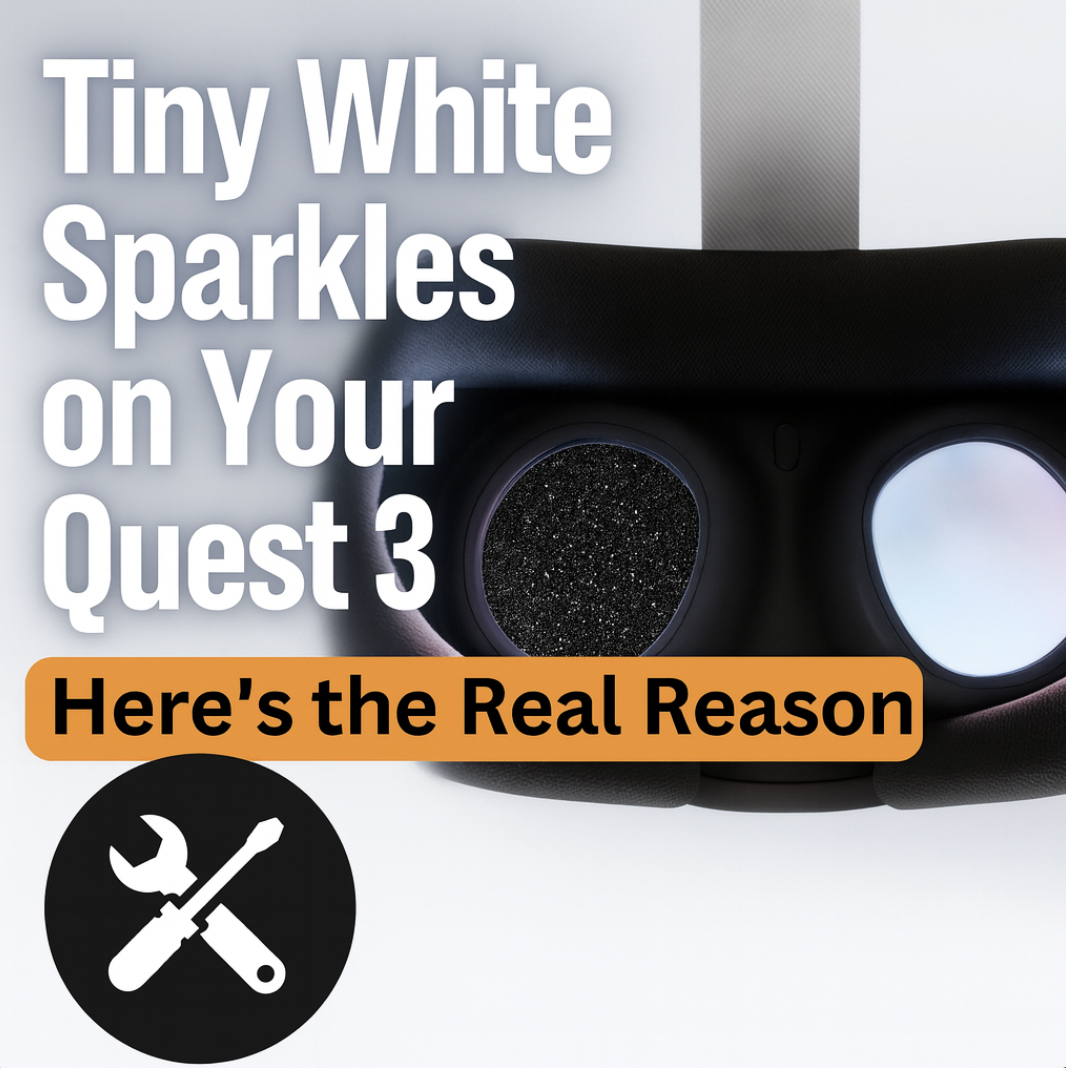
Tiny White Sparkles on Your Meta Quest 3 Screen? Here’s What’s Actually Going On
You sit down, fire up your Quest 3, open the Amazon Prime Video app, lights off, theater mode on… and suddenly you see it:
Tiny white “sparkles” or pixel snow dancing across the image — especially in dark scenes or when you move your head.
Instant panic:
“Is my brand‑new headset already dying?”
Let’s break down what those sparkles really mean, when it’s just software, and when it’s a real hardware failure that needs a lab.
First Things First: When You Should STOP and Talk to a Repair Lab
Before we get nerdy, here’s when you should stop troubleshooting and treat this like a hardware problem:
- 🔴 Sparkles are always in the exact same spot
A little cluster of white dots that never moves, even in menus and bright scenes. - 🔴 Only one eye is affected
Right lens has snow, left is perfectly clean (or vice versa). - 🔴 They’re there on every screen, from boot logo to home menu to every app — not just in Prime Video or one game.
- 🔴 History of a hit, squeeze, or liquid
You dropped the headset, someone sat on it, or it got sweaty/steamy… and now the sparkles won’t go away.
If that sounds like your headset, this is very likely hardware: think display cable, GPU/video memory, or panel damage — not a settings bug.
At that point, you’re not “tuning a picture,” you’re gambling with a failing board.
👉 That’s “get a free mail‑in quote” territory, not “keep rebooting it for a week” territory.
What Most People Are Actually Seeing
If you dig through user threads, you see the same story over and over:
- “I only notice it in the Amazon Prime Video app’s dark theater.”
- It looks like tiny white pixels or rainbow specks that flash randomly for a split second.
- It tends to be worse in dark scenes or dark environments.
- Sometimes it’s also visible in PCVR / Virtual Desktop / Air Link when GPU load is high.
Meta’s own community forum has a “Known Issue – rainbow screen artifacts natively and PCVR” thread describing exactly this: clusters of white or colored pixels that flash in and out, particularly under heavy rendering or video encoding load.
Some people had it improve after firmware updates; others say it’s been hanging around since v53 and still pops up.
So here’s the important thing:
The same “sparkle” symptom can be caused by two totally different problems.
One is software/firmware.
One is hard‑failure hardware.
They look similar, but behave very differently.
Two Problems Hiding Behind the Same Sparkles
1. Software / Firmware Artifacts (The “Annoying but Not Fatal” Kind)
This is what most Quest 3 owners are hitting:
- Shows up only in certain apps (Prime Video, specific games, PCVR streaming, etc.).
- Often worse in dark scenes or very low‑light environments.
- Sometimes linked to high video encode load (PCVR, high bitrate, certain codecs).
- Can change or improve after updates, app changes, or codec settings.
What’s going on under the hood?
- The Quest 3 is encoding/decoding a ton of video data in real time (especially for streaming apps and PCVR).
- When the GPU or encoder pipeline gets stressed or firmware misbehaves, you can get random pixel noise where the decoder essentially guesses wrong.
- In dark scenes, that noise stands out as bright sparkles on black — your brain notices little white flashes easily.
Meta’s own forums and user reports tie this to firmware / runtime issues more than outright dead hardware.
Annoying? Yes.
Terminal? Usually no.
2. Real Hardware Failure (The “Send It In” Kind)
Totally different beast.
This is what we see in the lab when sparkles are actually hardware:
- A bad display cable or connector:
Similar to how some Pimax headsets and PC VR headsets show white pixel flicker when the high‑speed cable starts to go, users report “white ant” style flicker in other VR gear that was fixed by replacing the cable. - Failing GPU / video memory / display driver IC:
A chip that’s right on the edge can spit out random corrupt pixels — especially as it warms up. - Panel damage or local short:
If a patch of the display matrix is compromised, you can see fixed or semi‑fixed speckling, often in one eye only.
Hardware sparkles tend to have a few tells:
- They don’t care what app you’re in — menus, passthrough, games, all show the same static or flicker.
- They may start only when the headset warms up, then get worse over time.
- They’re more likely after impact, flexing, or moisture.
Once you’re in that territory, no factory reset or settings tweak is going to permanently fix it.
Quick At‑Home Test: Is Yours Probably Software or Hardware?
Here’s the simple, non‑technical test flow we’d walk a customer through on the phone.
Step 1: Check Where the Sparkles Show Up
- Home menu only clean?
- Only in Amazon Prime Video or a specific game?
- Or everywhere, from boot logo onward?
- App‑only → likely software/firmware.
- Everywhere → lean toward hardware.
Step 2: Do a “Background” Test
In a dark room, try three backgrounds:
- Pure black (a dark loading screen, or an app with a black background).
- Medium grey (settings panels, browser on a grey site).
- Pure white (a blank browser tab or white image).
Move your head slowly.
- Sparkles mostly on black / dark and only sometimes → more like encoding / firmware noise.
- Sparkles visible even on white / menus, or always in same area → more suspicious for hardware.
Step 3: Kill the Network for a Minute
- Turn Wi‑Fi off on the headset.
- Open something that doesn’t stream video (basic home menu, built‑in environments).
- Watch for sparkles for a few minutes.
If all the snow only appears when you’re streaming or in PCVR and disappears offline, that screams software/encoding path rather than a dying panel.
Step 4: Check Each Eye Individually
Close or cover one eye at a time:
- Both eyes show the exact same pattern → more likely GPU/encoder/firmware.
- Only one eye is affected → more likely physical panel/cable/driver issue.
Step 5: One (and only one) Factory Reset
If you’re still unsure and you’re out of the return window, do one full backup + factory reset.
- If the sparkles change behavior (less often, different apps, different intensity), that leans software.
- If they stay identical, especially at boot and in menus, that leans hardware.
If after this checklist you’re still in “everywhere, one eye, same pattern, same behavior” land… you’re in the “don’t keep hammering it, talk to a lab” bucket.
What Not to Waste Time On
Stuff we constantly see people trying that almost never helps:
- Cleaning lenses – the sparkles are on the panel, not the glass.
- Re‑installing Prime Video ten times – app reinstalls won’t fix firmware‑level artifacts.
- Cranking brightness way up – this can actually make the noise more obvious in some cases.
- Mashing hidden settings, dev modes, random YouTube “fixes” – at best they mask it, at worst they add new problems.
If it’s a Meta‑side firmware bug, only a Meta update fixes it. If it’s hardware, no amount of menu diving will help.
Your two real options are:
- Ride it out and hope Meta patches it (for clear software cases).
- Get a proper diagnostic if your symptoms scream hardware.
When a Lab Repair Actually Makes Sense
A repair lab like ours becomes the smart move when:
- Your headset is out of warranty or Meta wants to swap it for full price.
- You have hardware‑ish symptoms (one‑eye, always‑on artifacts, after a drop, etc.).
- You’d rather repair the device you have than roll the dice on a refurb.
Behind the scenes, a proper lab doesn’t “just look at it” — here’s what actually happens.
What We Do in the Lab
- Replicate your symptoms on controlled test patterns
We run the headset through static gradients, checkerboards, and solid dark frames to see how and where artifacts appear. - Separate “firmware bug” behavior from “failing hardware” behavior
Based on patterns that match known Meta firmware issues vs. classic GPU / cable failure signatures from other headsets we see regularly. - Inspect the display path (no guessing)
Depending on the model and revision, that can mean:- Checking and reseating internal display flex cables
- Inspecting the main board for obvious liquid / mechanical damage
- Thermal stressing to see if sparkles appear at certain temperatures
- Decide if it’s fixable without a full board swap
Sometimes it’s just:- A marginal connector that can be re‑worked
- Damage localized to one display or cable
Other times it’s a main board replacement or nothing.
- Call you with a simple yes/no decision
- “We can fix this; here’s what the repair involves.”
- Or: “This unit’s main board is too far gone; we don’t recommend throwing money at it.”
No jargon, no surprise charges — just a real diagnosis.
What to Expect With a Mail‑In Quest 3 Repair (Mad Lab Repair)
If your symptoms match the red flags at the top, here’s what the process looks like with us:
- Quick online intake & free quote request
You tell us:- When the sparkles show up
- Whether it’s one eye or both
- If the headset was dropped / squeezed / splashed
- We email you simple shipping instructions
- How to pack the headset so it doesn’t get crushed
- What to include (just the headset unless we ask for more)
- We run the full diagnostic first
- Reproduce the sparkles
- Separate firmware‑style behavior from hardware failure
- Verify whether a repair is likely to hold up long‑term
- You get a call or email with options
- ✅ “Yes, this is a repairable hardware issue; here’s what we’ll do.”
- ❌ “This looks like a Meta firmware problem or a board we don’t recommend repairing — we’ll send it back as is.”
- You only approve if the plan makes sense for you
No work proceeds until you say “go.”
Bottom Line
Those tiny white sparkles on your Quest 3 screen aren’t random magic dust:
- In a lot of cases, especially only in Prime Video / PCVR / certain games, you’re looking at a known software/firmware artifact that Meta has been wrestling with across several updates.
- But if you’re seeing:
- One‑eye snow,
- Fixed clusters that never move,
- Or sparkles on every screen after a physical incident…
…that’s when it stops being “VR quirk” and starts being real hardware failure.
If you’re in that second category and out of warranty:
👉 Get a free repair quote from Mad Lab Repair.
We’ll tell you whether it’s actually fixable — and whether it’s worth fixing — before you spend a dollar on the repair itself.
If you’d like, I can also spin shorter variants of this post (for social, email, or a “Sparkles vs Dead Pixels” explainer) pulled from this same blog so everything stays consistent.

%20(7).png)