Last updated: June 6, 2026
Acer Smart Glasses Not Working? First Check Whether It’s the GI0 AI Glasses or GR0 AR Display
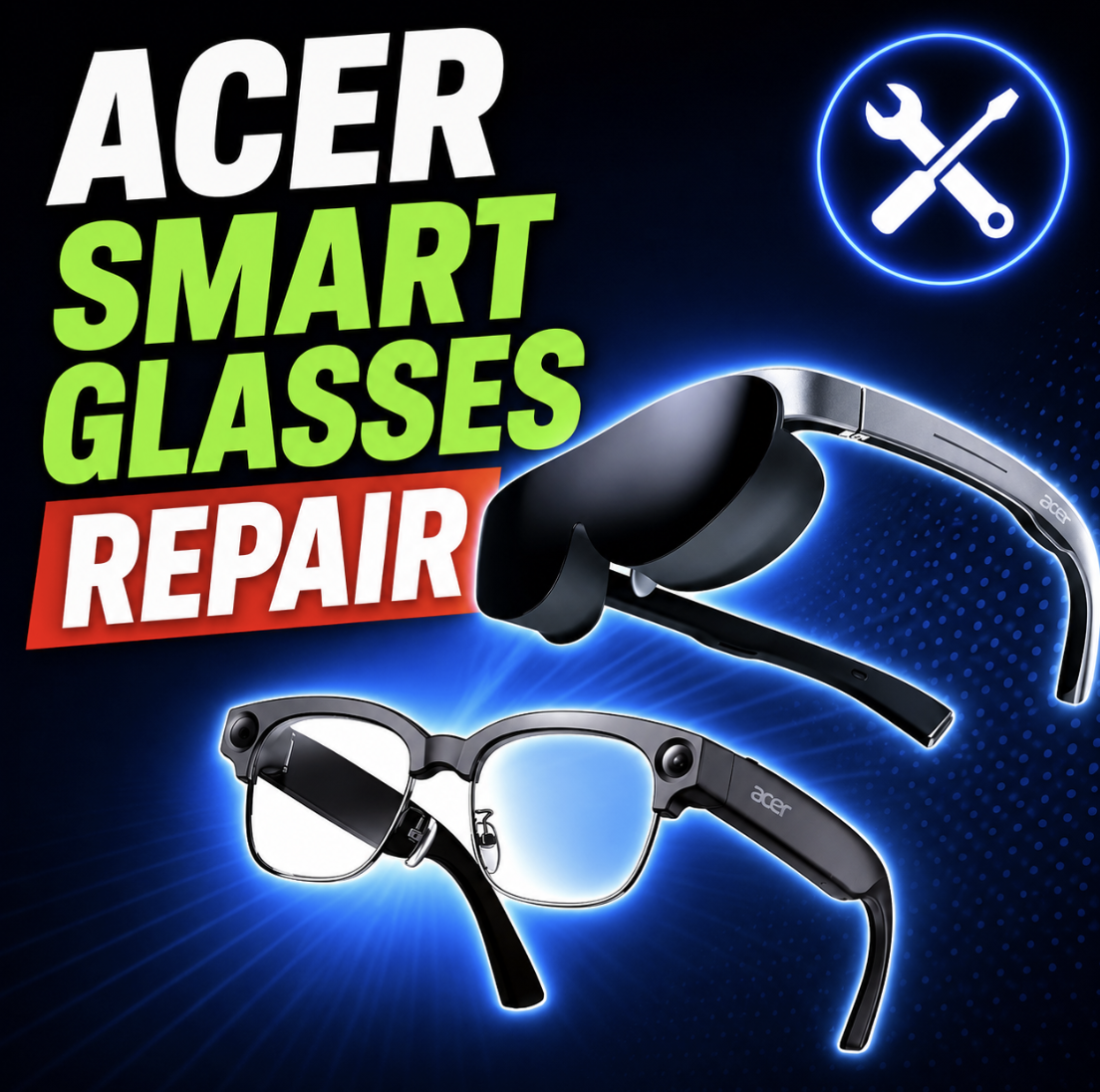
Acer smart glasses repair starts with one very important question: do you have the Acer GI0 AI Glasses or the Acer GR0 AR Glasses?
That matters because these are not the same type of product. The GR0 is the wired display-glasses path. If your GR0 has a black screen, no 3D image, one side not working, no audio, or blurry visuals, the problem may be the source device, cable, display mode, fit, myopia lens option, or the glasses hardware.
The GI0 is the AI/camera/audio path. If your GI0 is not pairing, not recording, not hearing you, not charging, or not responding to the touchpad or capture button, the problem may be the companion app, Bluetooth, Wi-Fi, phone permissions, camera, microphone, battery, storage, or hardware damage.
Mad Labs offers independent mail-in repair help for Acer smart glasses. We are not Acer warranty service. Since these products are new, part availability and repair options may vary. If your GI0 or GR0 is still under Acer warranty and the issue looks like a covered defect, check Acer support first.
Two Acer smart glasses, two completely different repair paths
A lot of smart-glasses pages make the mistake of treating every model like a small wearable monitor. That does not work here. Acer’s current smart-glasses lineup splits into two lanes: one for wired AR display glasses, and one for AI glasses with camera, audio, and app features.
Important: Do not diagnose the GI0 like a black-screen AR display problem. GI0 is not the GR0. If someone says “my Acer glasses have no display,” first confirm which model they actually own.
Quick sort: is this a GI0 problem or a GR0 problem?
Before you think about repair, sort the problem into the right lane. This saves time and keeps you from mailing in the wrong part.
Acer GR0 no display, black screen, 2D/3D, cable, and source-device issues
The Acer GR0 is the display-glasses path. A black screen on this model does not automatically mean the glasses are broken. A wired display product depends on the source device, cable, display output, app/content mode, and the glasses.
| What you see | Check first | Repair is more likely when |
|---|---|---|
| No image on one phone | Source-device compatibility, display output, and cable path. | The GR0 fails on multiple compatible devices. |
| No 3D mode | Content type, 3D mode, source device, and app support. | The display has artifacts, lines, or one side fails in all modes. |
| Screen cuts out when moved | Cable seating, connector strain, and whether the failure is angle-sensitive. | The connector or cable path is physically loose or damaged. |
| One side stays dark | Try another compatible source and check cable behavior. | The same side stays dark across all known-good setups. |
Best first test: Try the GR0 with a known-compatible source device and the correct cable path. If it works there, the glasses may not need repair.
GR0 one-side display, audio, controls, myopia lens, light shield, and frame problems
Once basic source-device checks are done, GR0 repair becomes more about hardware: display behavior, audio, swipe controls, lens/accessory fit, cable strain, and physical damage.
Careful wording: The GR0 has a myopia lens option. Do not treat that like a built-in diopter dial unless your exact unit or accessory actually has that adjustment.
Acer GI0 AspireSync, Bluetooth, Wi-Fi, pairing, and phone-permission issues
The Acer GI0 is the AI/camera/audio path. If it is not pairing or not responding, start with the companion app, phone compatibility, Bluetooth, Wi-Fi, permissions, and account/app behavior before assuming hardware failure.
Plain English: GI0 repair starts like phone-accessory troubleshooting. Pairing, permissions, app updates, and connectivity come before parts.
GI0 camera, microphone, audio recording, capture button, and touchpad problems
GI0 problems can look like hardware failures when the app simply does not have permission to use the camera or microphone. Start with permissions and normal recording/calling behavior, then move toward hardware diagnosis.
| Symptom | Check first | Repair is more likely when |
|---|---|---|
| Camera not working | App permissions, storage, app connection, lens cleanliness, and normal capture mode. | The camera fails after permissions and setup checks. |
| Blurry photos or video | Clean the camera area gently and check lighting, motion, and app behavior. | The lens is scratched, damaged, or always blurry in normal conditions. |
| Microphone not hearing you | Microphone permissions, app settings, call/recording mode, and background noise. | Recording and voice features fail across normal uses. |
| No audio recording | Storage, permissions, app mode, phone connection, and recording settings. | The mic path fails even after permission and storage checks. |
| Capture button not working | Button press behavior, app mode, pairing state, and restart. | The button is stuck, loose, cracked, or never responds. |
| Side touchpad not working | App mode, gestures, pairing state, and whether the controls respond after restart. | The touchpad fails across normal setup and may be physically damaged. |
GI0 not charging, battery, storage, status LED, and no-power problems
Charging and power issues are some of the strongest GI0 mail-in repair candidates, but start with the simple checks: charger, cable, charging contacts, debris, status LED behavior, and whether the device responds after a normal charge.
Safety note: If the glasses were exposed to liquid, smell burnt, get unusually hot, or show battery swelling, stop charging them and get them inspected.
What looks broken but may not be repair-first
This section matters because Acer GI0 and GR0 are new devices. Some early “repair” complaints may really be setup, compatibility, permissions, or mode confusion.
| Problem | More likely first step | Why |
|---|---|---|
| GR0 black screen on one device | Check source-device compatibility and display output. | The glasses may be fine if the device is not sending video correctly. |
| GR0 3D mode not working | Check content, app, source device, and display mode. | Not every video, app, or device path supports 3D playback. |
| GR0 blurry from day one | Check fit, lens cleanliness, and the myopia lens option. | Fit and vision correction can look like display failure. |
| GI0 not pairing | Check AspireSync/app flow, Bluetooth, Wi-Fi, phone OS, and permissions. | Pairing problems are often setup-related. |
| GI0 camera will not save | Check storage, app permissions, and app connection. | Storage or permissions can block capture. |
| GI0 AI features not responding | Check microphone permission, app connection, account behavior, and internet connection. | AI features can fail even when the hardware is fine. |
What is more likely to need mail-in repair
Mail-in repair makes more sense when the issue follows the hardware after normal setup checks, or when there is visible physical damage.
Acer warranty and support first when the device is new
Since the GI0 and GR0 are new smart-glasses products, many early buyers may still be under Acer warranty. If your glasses are new, have no physical damage, and the issue looks like a covered defect, start with Acer support.
Independent mail-in repair is usually more useful for out-of-warranty devices, secondhand purchases, physical damage, liquid exposure, connector damage, failed buttons, broken frame parts, or cases where you want diagnosis before replacing the glasses.
Honest repair note: Because GI0 and GR0 are new, repair options may depend on replacement-part availability. Do not assume every display, camera, battery, or board issue can be repaired the same way as an older device.
What to send with your mail-in request
The best request does not just say “Acer glasses broken.” Tell us which model you have, what failed, what you already tested, and whether it is the AI/camera path or the wired display path.
Need mail-in help for Acer smart glasses?
Acer smart glasses repair starts by choosing the right path. GR0 problems usually start with the wired display setup: source device, cable, 2D/3D mode, audio, display behavior, fit, and physical damage. GI0 problems usually start with the AI/camera setup: AspireSync, Bluetooth, Wi-Fi, permissions, camera, microphone, charging, storage, and controls.
Send the model, symptom, and clear photos. Mad Labs can help sort whether the issue looks like setup troubleshooting, Acer warranty support, accessory confusion, or independent mail-in repair.
FAQ
Do you repair Acer smart glasses?
Mad Labs offers independent mail-in repair help for Acer smart glasses. Common repair candidates may include charging problems, broken frames, failed buttons, touchpad issues, one-side display failure, audio problems, camera or microphone failure after permissions checks, and out-of-warranty physical damage.
Which Acer smart glasses can be diagnosed?
The two main paths are Acer GR0 AR Glasses and Acer GI0 AI Glasses. The GR0 is the wired AR display path. The GI0 is the AI/camera/audio path.
What is the difference between Acer GI0 and Acer GR0?
Acer GR0 is a wired AR display glasses product for a virtual display experience. Acer GI0 is an AI glasses product focused on camera capture, audio recording, app pairing, Bluetooth/Wi-Fi, and AI assistance.
Why do my Acer GR0 glasses have no display?
No display can be caused by source-device compatibility, display-output settings, the cable path, adapter behavior, 2D/3D mode confusion, or hardware failure. Test with a known-compatible device before assuming the GR0 is broken.
Why does one side of my Acer GR0 display not work?
One side not working may be cable, source, mode, display module, connector, or internal hardware. If the same side stays dark across multiple compatible setups, mail-in diagnosis may make sense.
Why is 3D mode not working on Acer GR0?
Check whether the content, app, source device, and mode support 3D playback. If 2D works and 3D does not, the first step is usually content or settings, not repair.
Why are my Acer GR0 glasses blurry?
Blur can be caused by fit, lens cleanliness, the myopia lens option, source resolution, or vision needs. Sudden blur after a drop, one-side distortion, or visible damage is more repair-like.
Why won’t my Acer GI0 pair with AspireSync?
Check Bluetooth, Wi-Fi, phone OS compatibility, app version, permissions, pairing state, and whether another phone can detect the glasses. Pairing issues are often setup-related before hardware-related.
Why is the Acer GI0 camera not working?
Check app permissions, storage, app connection, lens cleanliness, and capture mode first. If the camera still fails after normal setup checks, hardware diagnosis may make sense.
Why is the Acer GI0 microphone not working?
Check microphone permissions, AI assistant behavior, captions, recording mode, phone settings, and app connection. If voice and recording features still fail, the microphone path may need diagnosis.
Why won’t my Acer GI0 charge or turn on?
Try known-good charging gear and inspect the charging area for debris or damage. If there is no status LED, no response, liquid exposure, or intermittent charging, mail-in diagnosis may be useful.
Why is the GI0 touchpad or capture button not working?
Check app mode, pairing, restart behavior, and whether the control responds in normal use. A stuck, cracked, loose, or completely nonresponsive control is more repair-like.
Should I contact Acer warranty first?
If your GI0 or GR0 is new, still under Acer warranty, and has no physical or liquid damage, contact Acer support first. Independent mail-in repair is usually more useful for out-of-warranty, secondhand, physically damaged, or warranty-ineligible devices.
Is Acer smart glasses repair worth it or should I replace them?
It depends on the model, warranty status, replacement price, damage, and part availability. A broken frame, one-side display failure, charging problem, camera/mic issue, or failed control may be worth diagnosing before replacing the glasses.
%20(7).png)