
Last updated: June 6, 2026
ASUS ROG Ally Repair: Mail-In Help for Ally, Ally X, Xbox Ally, Screen, Battery, Joysticks, SD Reader, USB-C, and Overheating Problems
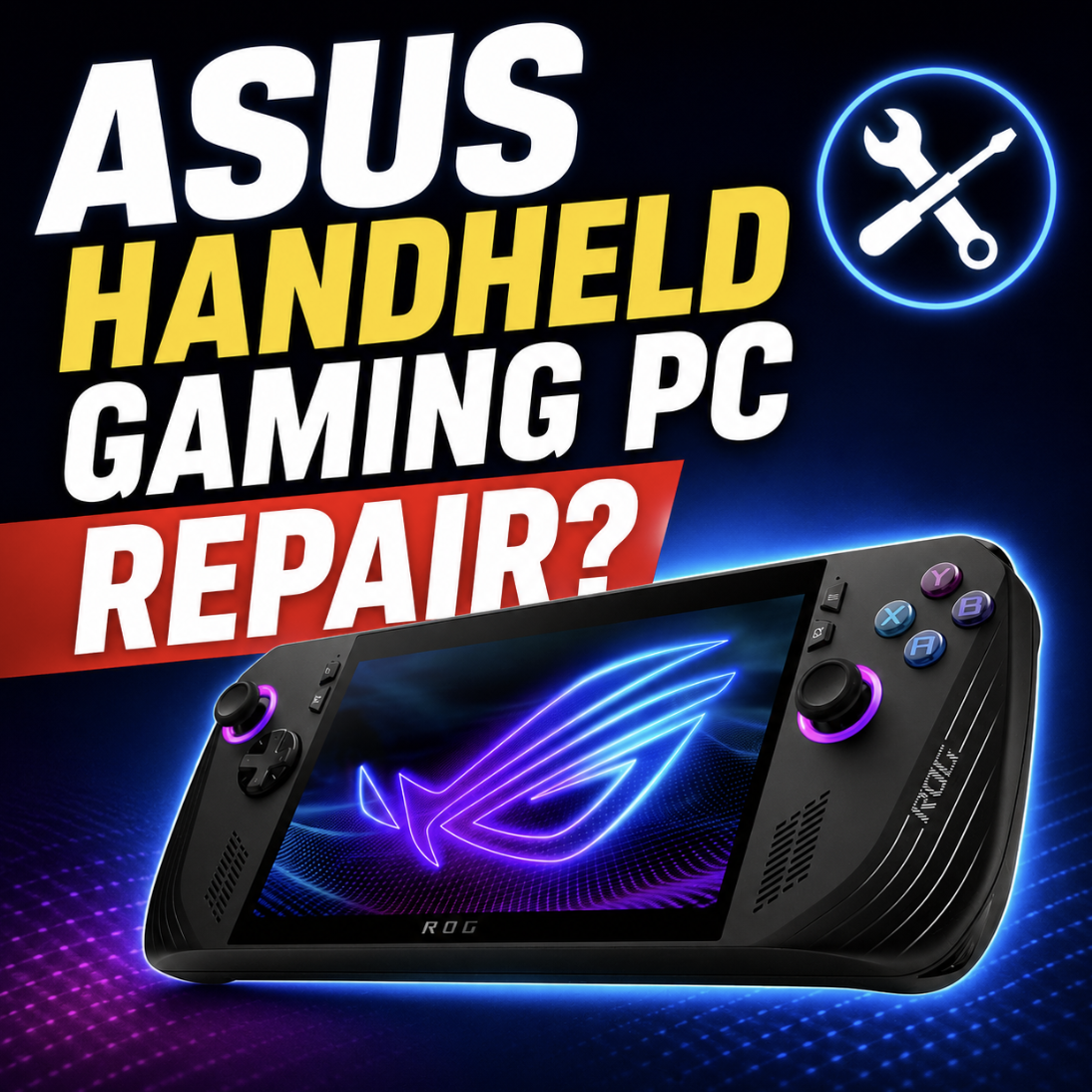
The ASUS ROG Ally is not a simple console. It is a Windows handheld gaming PC, which means a “repair” problem can come from hardware, Windows, Armoury Crate SE, BIOS, drivers, battery settings, a dock, a charger, a failed SSD upgrade, or a real damaged part.
That is why this guide starts with triage. A ROG Ally that will not charge may have a bad USB-C port, but it may also be charger-related. A unit stuck at 80% may simply have Battery Care Mode turned on. A trigger that stopped working may need calibration or updates before it needs parts. A cracked screen, dead fan, loose port, failed SD reader, liquid damage, or joystick drift that survives calibration is a different story.
Mad Labs offers independent mail-in repair help for ASUS ROG Ally handheld gaming PCs. We are not ASUS warranty service. If your Ally is still under warranty and the issue looks like a covered defect, check with ASUS support first.
First, which ASUS handheld do you have?
Model matters. The original ROG Ally has different repair patterns than the Ally X, and the newer ROG Xbox Ally models add a different software experience on top of Windows. Before diagnosing the problem, identify the exact handheld.
Tip: If you are not sure which model you have, check the model label, ASUS system info, MyASUS, the original box, or your order history before requesting repair.
First: is it hardware, Windows, Armoury Crate, BIOS, or an accessory?
A ROG Ally can act broken when the real issue is software, settings, power mode, BIOS, Windows recovery, or a bad accessory. These checks help avoid sending in a handheld that only needed a setting or update.
If the problem follows the hardware after these checks, mail-in diagnosis starts to make more sense.
Won’t turn on, won’t charge, battery drains, or stuck at 80%
Power problems are common, but not all of them mean the battery is bad. Start with the charger, cable, USB-C port, Battery Care Mode, and whether the handheld shows any charging light or signs of life.
Safety note: If the battery looks swollen, the shell is separating, there is liquid exposure, or the unit smells burnt, stop charging it and get it inspected.
Original ROG Ally SD card reader problems
The SD card reader is one of the most searched original ROG Ally repair issues. ASUS announced a US warranty extension for the SD card reader on the ROG Ally 2023 RC71L after saying a small number of readers may not perform as expected.
If you have the original ROG Ally and the microSD slot stops detecting cards, corrupts cards, disappears under load, or works only sometimes, check your ASUS warranty/RMA options first. If the unit is out of warranty, independent diagnosis may make sense.
Careful wording: Not every SD card problem is the same failure. Check the card, Windows, ASUS support options, and warranty status before paying for independent repair.
Joystick drift, buttons, triggers, bumpers, gyro, and haptics
Controls are a strong repair category, but they should not be repair-first. Armoury Crate SE includes calibration and control settings, so joystick drift, trigger issues, and gyro problems should be checked there before replacing parts.
| Symptom | Check first | Repair is more likely when |
|---|---|---|
| Joystick drift | Calibrate sticks and adjust dead zones in Armoury Crate SE. | Drift remains after calibration or the stick feels physically loose. |
| Trigger not registering | Check trigger calibration, updates, and control profile settings. | The trigger is stuck, damaged, or fails across profiles. |
| Button not working | Check game profile, mapping, Armoury Crate, and Windows input behavior. | The button is mushy, stuck, liquid-exposed, or physically damaged. |
| Bumper issue | Check mapping and whether the issue appears in multiple games. | The bumper does not click, sticks, or fails everywhere. |
| Gyro or haptics fail | Check Armoury Crate settings, calibration, game support, and updates. | Hardware feedback fails across supported games and profiles. |
Good lead: A dropped Ally with a dead trigger, drifting stick, or stuck bumper is much more repair-like than a control issue that started after a software update.
Screen, touchscreen, black screen, and display problems
A cracked screen is straightforward. A black screen is not. A ROG Ally can show no image because of screen damage, Windows, sleep state, driver problems, failed SSD boot, battery/no-power issues, or a motherboard fault.
SSD upgrade, Cloud Recovery, and Windows reinstall help
SSD work is one of the best ROG Ally mail-in opportunities because it sits between repair and upgrade. Some owners can do it themselves. Others want the drive installed, Windows recovered, drivers loaded, and the handheld tested before it comes back.
ASUS documents SSD replacement and ASUS Cloud Recovery, but opening the device, disconnecting the battery, seating the drive, and restoring Windows still creates room for mistakes. If your Ally stopped booting after an SSD upgrade, do not assume the motherboard is dead.
Backup warning: Recovery and reinstall steps can erase data. Back up what matters before SSD or Windows recovery work whenever possible.
Overheating, fan noise, thermal shutdown, and performance drops
The Ally can run hot because it is a compact gaming PC. Heat alone is not always a repair. But grinding fans, thermal shutdowns, blocked vents, dust, bad thermal contact, liquid exposure, or performance collapse under load can become repair issues.
USB-C, docks, external monitors, chargers, and XG Mobile path
USB-C problems can be expensive if misdiagnosed. A dock not working does not automatically mean the handheld port is bad. Test the charger, cable, dock, external display, power delivery, and direct charging first.
| Issue | Check first | Repair is more likely when |
|---|---|---|
| Won’t charge by USB-C | Known-good charger, known-good cable, outlet, and charging LED. | The port is loose, damaged, or fails with multiple chargers. |
| Dock not detected | Dock power, cable, charger wattage, display input, and another dock. | The Ally fails across known-good docks and cables. |
| External monitor no signal | Windows display settings, dock, cable, monitor input, and resolution. | The USB-C display path fails across several setups. |
| Port only works at an angle | Stop forcing it and inspect for connector damage. | Angle-sensitive charging or data usually needs inspection. |
| XG Mobile path problem | Check model support, connector seating, drivers, and software. | The connector or port appears damaged or fails repeatedly. |
Audio, speakers, mic, Wi-Fi, Bluetooth, gyro, and sensors
These issues are usually lower-priority than screen or power failures, but they still matter. A ROG Ally with no sound, bad Wi-Fi, dead Bluetooth, broken microphone, or failed haptics can be frustrating, especially if the problem follows the device after updates and resets.
Mail-in repair vs DIY checks vs ASUS support
The right path depends on warranty status, damage history, and whether the issue still looks like hardware after basic software and accessory checks.
| Situation | Best path | Why |
|---|---|---|
| In warranty, no physical damage | Contact ASUS support first. | A covered defect may belong in ASUS warranty service. |
| Original Ally SD reader issue | Check ASUS warranty/RMA options first. | ASUS announced a US SD reader warranty extension for RC71L. |
| Battery stops at 80% | Check Battery Care Mode. | This may be intentional, not a bad battery. |
| Controls fail after update | Update and calibrate in Armoury Crate SE first. | Software settings can mimic hardware failure. |
| Cracked screen or broken shell | Mail-in physical repair evaluation. | Updates will not fix physical damage. |
| Loose USB-C port | Mail-in diagnosis. | Angle-sensitive charging or data is usually hardware-like. |
| Failed SSD upgrade | Recovery or mail-in upgrade help. | The issue may be SSD seating, BIOS, recovery, or Windows install. |
Independent mail-in repair is most useful for out-of-warranty units, secondhand devices, cracked screens, damaged controls, worn sticks, broken USB-C ports, failed fans, liquid exposure, failed upgrades, or problems where you want diagnosis before replacing the handheld.
What to send with your mail-in request
The more specific you are, the faster the repair path becomes clear. “ROG Ally won’t work” is hard to diagnose. “ROG Ally X charges only when the USB-C cable is held at an angle” is much better.
Need mail-in help for an ASUS ROG Ally?
ROG Ally repair starts with sorting the symptom. It may be hardware, but it may also be Armoury Crate SE, BIOS, Windows, Battery Care Mode, Cloud Recovery, a charger, a dock, or a known model-specific issue.
Send your model, symptom, and clear photos of the issue. Mad Labs can help sort whether it looks like mail-in repair, software recovery, SSD upgrade help, accessory troubleshooting, or something ASUS warranty support should handle first.
FAQ
Do you repair ASUS ROG Ally handhelds?
Mad Labs offers independent mail-in repair help for ASUS ROG Ally handheld gaming PCs. Common repair candidates include cracked screens, joystick drift, stuck buttons, broken triggers, USB-C port damage, fan failure, battery issues, failed SSD upgrades, and out-of-warranty hardware problems.
Which ASUS handheld gaming PCs can be diagnosed?
Common models include the ROG Ally 2023, ROG Ally Z1, ROG Ally Z1 Extreme, ROG Ally X, ROG Xbox Ally, and ROG Xbox Ally X.
Is the ROG Ally a console or a Windows PC?
The ROG Ally is a Windows handheld gaming PC. That means repair diagnosis should include Windows, BIOS, drivers, Armoury Crate SE, storage, charger, dock, and accessory checks before assuming a part is broken.
Why won’t my ROG Ally turn on?
A no-power issue can be caused by the charger, cable, USB-C port, battery, BIOS/firmware state, failed SSD boot, liquid damage, or a board problem. Try known-good power equipment first and stop charging if liquid or swelling is suspected.
Why won’t my ROG Ally charge?
Check the charger, USB-C cable, charging LED, Battery Care settings, and whether the port feels loose. If it only charges at an angle or fails with multiple chargers, mail-in diagnosis may make sense.
Why is my ROG Ally stuck at 80% battery?
Check Battery Care Mode first. ASUS provides a battery-care feature that can limit charging to 80% to reduce battery wear, so stopping at 80% is not automatically a bad battery.
Can the ROG Ally SD card reader be repaired?
SD reader problems can sometimes be repaired or diagnosed, but original ROG Ally RC71L owners should check ASUS warranty/RMA options first because ASUS announced a US SD card reader warranty extension for that model.
Can ROG Ally joystick drift be repaired?
Joystick drift may be improved with calibration or dead-zone adjustment, but if it remains after software checks or the stick feels physically worn, a stick repair or replacement may be needed.
Why did my ROG Ally triggers or buttons stop working?
Check Armoury Crate SE calibration, control mapping, game profiles, BIOS, drivers, and updates first. If a trigger or button is physically stuck, damaged, or fails across all profiles, repair diagnosis makes more sense.
Can a cracked ROG Ally screen be replaced?
A cracked or physically damaged screen is a strong mail-in repair candidate. Black screen issues without visible damage need more diagnosis because the cause may be power, Windows, SSD boot, drivers, or board-level hardware.
Can you upgrade the ROG Ally SSD?
SSD upgrade help is a strong mail-in service if you want the drive installed, Windows restored, drivers loaded, and the handheld tested. If you upgraded the SSD yourself and Cloud Recovery is stuck, the issue may still be recoverable.
Why is my ROG Ally overheating or shutting off?
Check power mode, fan behavior, vents, background apps, game settings, and charger behavior. Repair is more likely if the fan grinds, does not spin, the unit shuts off under load, or there is dust, liquid, or thermal damage.
Why is my USB-C dock or external monitor not working?
Test the dock, cable, charger wattage, monitor input, display settings, and another accessory before assuming the Ally USB-C port is bad. A physically loose or angle-sensitive port is more repair-like.
Should I contact ASUS warranty first?
If the handheld is still under warranty and the issue looks like a covered defect, contact ASUS support first. Independent mail-in repair is usually more useful for out-of-warranty devices, secondhand units, physical damage, liquid exposure, failed upgrades, or warranty-ineligible problems.
Is ROG Ally repair worth it or should I replace it?
It depends on the model, damage, warranty status, part availability, and replacement cost. A cracked screen, bad controls, failed fan, loose USB-C port, SSD recovery issue, or out-of-warranty repair may be worth diagnosing before replacing the handheld.

%20(7).png)