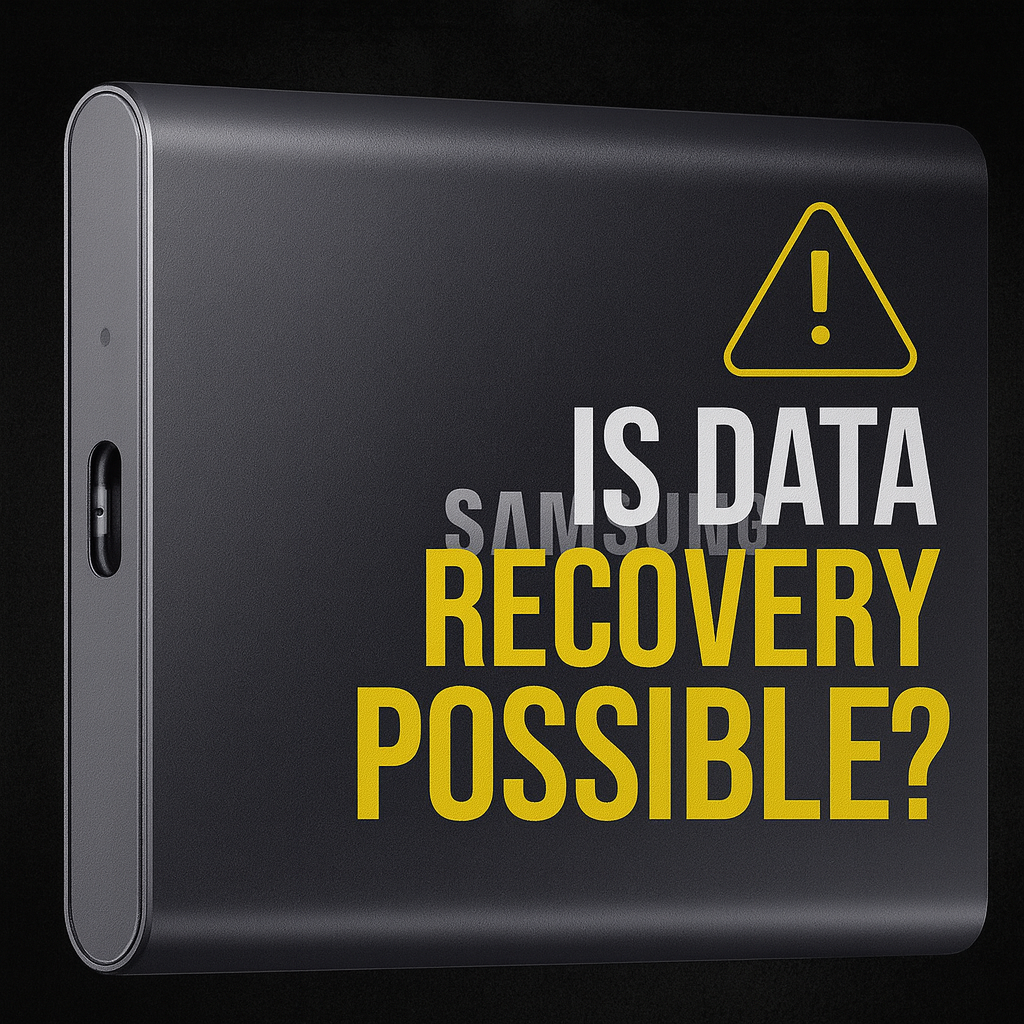
If your external SSD suddenly stopped showing up and now says it needs to be initialized — or worse, shows 0 bytes — don’t panic. Your data may still be recoverable. Here’s exactly what’s going on, why it happens, and what recovery options you actually have.
When an external SSD fails, it can show a mix of the following:
“You need to initialize the disk before Logical Disk Manager can access it.”
Unlike spinning hard drives, SSDs can fail in unique ways. Common causes include:
Modern SSDs rely on embedded firmware to manage memory translation. A glitch or corruption can make the drive appear unformatted or unreadable.
The SSD controller acts like a brain for your storage. If it malfunctions, your computer may see the physical drive but report 0 bytes or request initialization
If your external SSD suddenly vanished, shows 0 bytes, appears as “Unknown / Not Initialized”, or Windows says you must initialize the disk, the most important thing is this:
Stop trying random “fixes.” Your data may still be recoverable, but the wrong click can make it harder (or impossible).
This guide explains what those messages usually mean, what to do first, what not to do, and when recovery is realistically possible.
Yes, data recovery is sometimes possible — but it depends on what your computer can still read from the SSD.
In Windows Disk Management, “Initialize Disk” is meant for brand-new drives, and it sets the disk’s partition style (MBR or GPT) so it can be used.
If your SSD previously worked and now prompts for initialization, Windows is basically saying:
“I can see something at the device level, but I can’t read a valid partition structure the way I expect.”
Important nuance: initialization doesn’t necessarily wipe every byte of your files instantly, but it does write new partition information and can overwrite the clues recovery tools/labs use. Microsoft’s Disk Management troubleshooting guidance even calls out the scenario where you have “a disk full of important files that you don’t want the initializing process to erase.”
Ontrack (a major data recovery provider) lists common causes for “Unknown / Not Initialized” states including hardware errors, corrupted file system, and damaged MBR (partition table).
For SSDs specifically, these symptoms often map to a few buckets:
If the data matters, avoid actions that can change the drive’s state:
Open Disk Management (Start → search “Disk Management”). Microsoft’s Disk Management overview shows where initialization is offered, but for recovery you’re just observing what Windows reports right now.
Look for the SSD in the bottom list:
Open Disk Utility → View → Show All Devices (important), then see if the physical device appears. Apple documents this “Show All Devices” approach as part of proper Disk Utility workflows.
Likelihood: hardware path issue or severe failure.
Try: different cable/port/computer, avoid cheap hubs, try powered hub/enclosure.
Stop DIY if: it’s still missing or repeatedly disconnecting.
Likelihood: logical/partition damage; recovery is often possible.
Best next step: make a sector-by-sector clone/image to another drive first, then scan the clone with recovery software (or send to a pro). (Imaging first prevents you from “working on the patient.”)
Likelihood: controller/firmware translation failure, enclosure bridge failure, or severe corruption.
DIY recovery software often fails here because the OS isn’t getting readable addressable space.
This is where a professional lab is usually the right call.
Apple’s Disk Utility “initialize” / “erase and reformat” workflow is explicitly an erase operation.
If you need the files, don’t erase — treat it as a recovery case.
TRIM can make recovery of deleted files much harder because blocks can be cleared internally after deletion. Data recovery labs commonly note this as a reason SSD recovery is different from HDD recovery.
That said, your situation (“drive not showing up / needs initialization / 0 bytes”) is often not a simple “deleted file” case. The bigger risk is accidentally triggering writes/repairs that alter metadata or cause more internal housekeeping.
If any of these are true, you’re in “don’t experiment” territory:
Ontrack specifically warns that if hardware errors are involved, you should avoid software attempts that could worsen the situation.
If your external SSD is showing 0 bytes, says it needs to be initialized, or isn’t accessible anymore, don’t format it or try random fixes.
The safest next step is to have it properly evaluated before anything changes on the drive.
👉 Click the “Start a Repair” button below and submit the details of your SSD and what you’re seeing.
We’ll review it and guide you to the correct next step.
Sometimes, yes — but you should stop immediately and avoid further writes (no formatting, no CHKDSK). Initializing writes new partition-style info (MBR/GPT), which can complicate recovery.
Not if you’re trying to recover data. CHKDSK repairs can change file allocation structures and data loss can occur, especially on damaged file systems.
No, not if you need the files. Apple’s initialize/erase guidance is an erase workflow.
%20(7).png)
Fix what’s worth keeping.
Copyright © 2025 Mad Labs Repair. All Rights Reserved