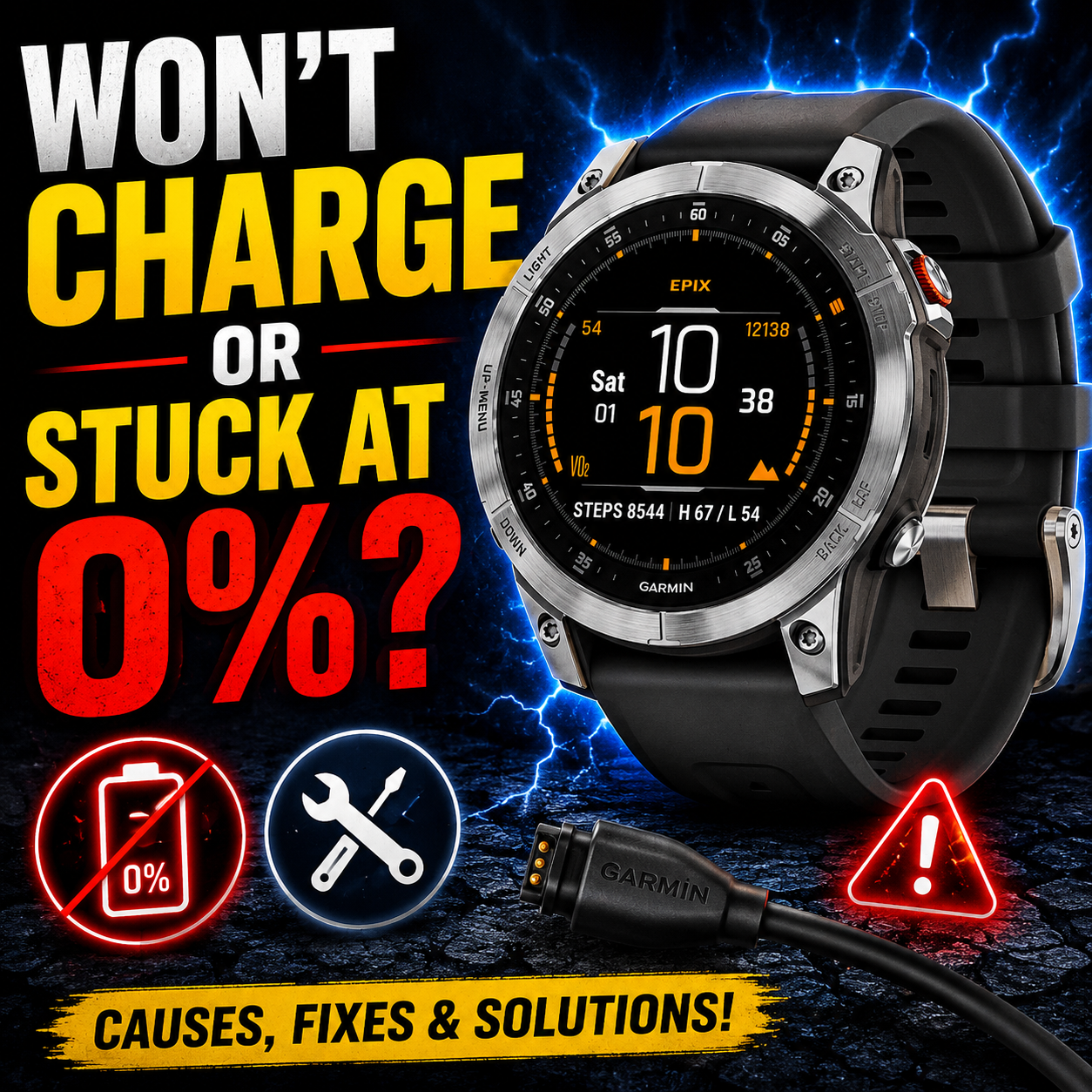
You plug your Garmin in, check it later, and it’s still at 0%. Or the charging symbol flashes up, disappears, and only comes back when you hold the cable just right. Maybe the screen stays black altogether.
Before you buy a battery or write the watch off, check how power is getting to it. A dirty contact, damaged cable and frozen watch can all look like a dead battery. Here’s what you can safely rule out at home, and where to stop.
Stop charging if the watch is swollen, the case is separating, it smells unusual or it becomes unusually hot. Do not press the case back together or try to open, puncture or jump-start the battery. Get advice before using or charging it again.
“Charging pin repair” can mean different things. Damaged pins on a detachable cable are a cable issue. Damage to the contacts on the watch itself needs a separate inspection. Replacing one does not automatically solve the other.
Use the charging cable intended for your exact Garmin model. Try a known-working USB power source that meets the requirements in its manual. If possible, try another compatible, undamaged cable, changing one thing at a time so you know what made a difference.
Unplug the cable before inspecting it. Look for frayed insulation, corrosion and missing, bent or uneven charging pins. A pin sitting lower than the others is a reason to stop using that cable, not to pull it up with a needle. Do not wedge the connector in place or force it into the watch.
What to look for: if another cable gives you a steady connection, stop using the suspect cable. If neither works, that still doesn’t prove the battery is bad. Move on to the contacts.
Sweat and dirt can build up where the charger meets the watch. With the watch disconnected, gently wipe its charging contacts with a damp, lint-free cloth. Garmin also describes using a soft-bristled toothbrush to remove debris from exposed contacts. Keep the brush away from holes, speakers and microphones, and never poke into openings.
For the disconnected charging cable’s contacts, Garmin recommends a pencil eraser or a cotton swab dipped in rubbing alcohol. Let the cable air-dry completely. Follow your model’s care instructions if they differ.
The watch contacts, surrounding area and cable must be completely dry before reconnecting. Do not scrape contacts with metal tools, sand them or soak the watch in cleaning products. If corrosion or physical damage remains, stop rather than scrubbing harder.
What to look for: after everything is dry, reconnect without forcing it and check whether charging stays connected. If it still cuts in and out, note that for an assessment rather than keeping pressure on the plug.
Find the exact model in Garmin Support or its owner’s manual before following a button sequence. A fēnix, Forerunner, Venu, Instinct or Approach may need different instructions, and some older devices have their own procedure.
Start with Garmin’s no-power troubleshooting guide and select your exact product. Follow the instructions shown for that model rather than a button sequence intended for another watch.
A forced restart is not the same as a factory reset. Check the data warning in the relevant instructions; some recent information may be lost. If the watch is still usable, sync it before troubleshooting further. Avoid a factory reset as a first step.
A deeply discharged watch may need time on a working charger before it responds. Garmin’s rechargeable-battery guidance advises allowing several hours even when charging is not shown. Follow the charging guidance for your model, and stop if heat or other warning signs appear. Repeatedly leaving a faulty watch connected is not a repair.
Check the charging temperature range in the manual too. Let a watch that has been in a hot car or out in the cold return to a suitable indoor temperature naturally. Do not use a heater or freezer to try to revive it.
If the watch starts working, check for available software updates using the supported method for that model. Review its battery-use settings and whether an activity is still recording. Note how long it lasts after charging and whether it shuts off immediately when unplugged. Those details help separate a short-runtime complaint from a watch that never takes a charge; they do not identify the failed part on their own.
You’ve tried a working power source, a compatible cable, clean dry contacts and the right restart. If it still won’t charge, stop repeating the same tests. The battery, watch-side contacts or internal charging electronics may need attention, and the screen percentage cannot tell you which.
Contact Garmin Support first, especially if the watch may still be under warranty. Ask what support or service options apply to your model before arranging an independent repair.
Garmin’s rechargeable watch batteries are not intended for user replacement. Avoid opening the watch or attempting battery bypasses. If you consider an independent repair, get a full quote and compare it with the options Garmin offers. Ask what fault has been identified, what work and testing are included, the total cost, any repair warranty and the limits on water resistance. Do not assume a repaired or opened watch retains its original water resistance; ask about the limits before swimming or diving with it.
Use the Mad Labs Repair request form to tell us what your Garmin is doing. You don’t need to diagnose it yourself. A useful request includes:
Ask whether assessment is available for your model and wait for shipping instructions before sending it in. If the case is swollen, separating or getting unusually hot, say so in the request and get safe handling guidance first. Don’t pack and post a damaged battery without advice.
Bottom line: check the connection before buying parts, use the instructions for your exact model, and don’t force a watch that is showing warning signs. A stuck percentage is a symptom, not a diagnosis.

Fix what’s worth keeping.
Copyright © 2025 Mad Labs Repair. All Rights Reserved