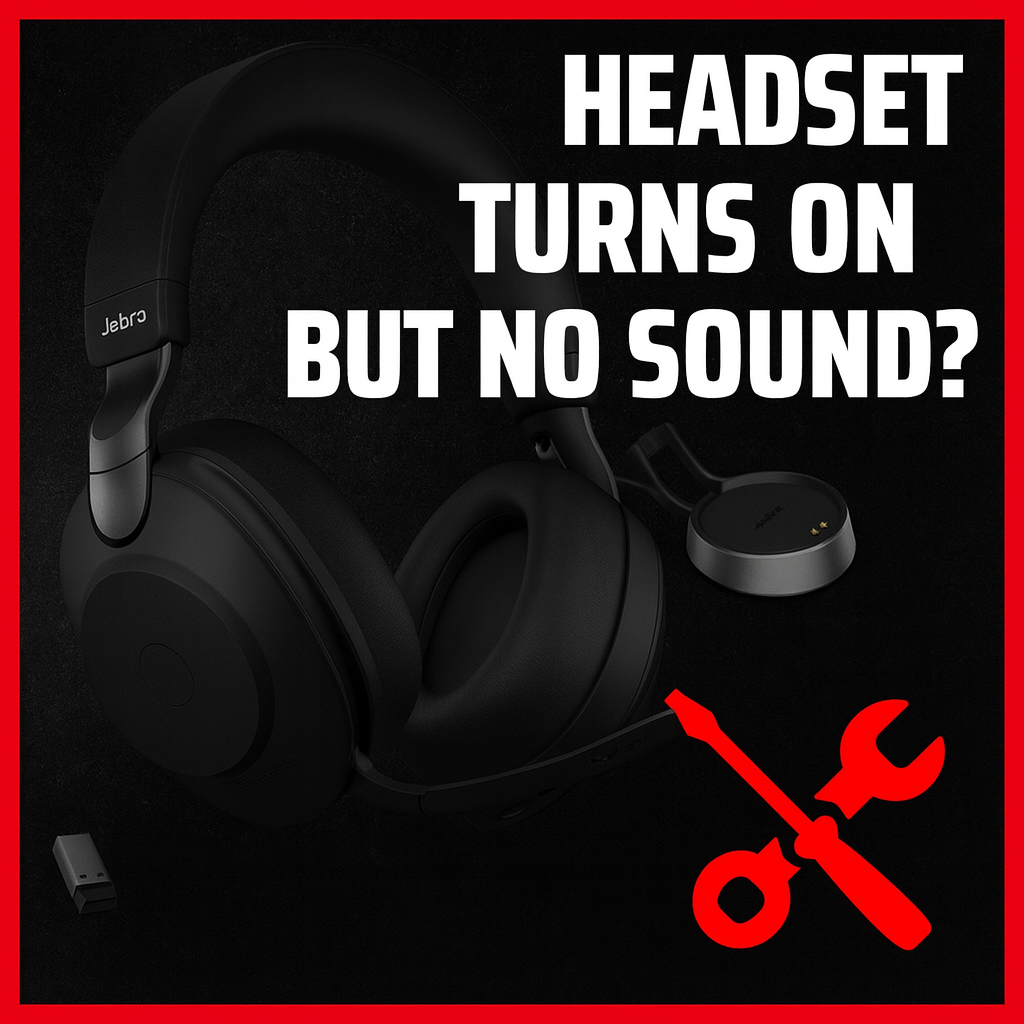
Headset Turns On But No Sound? What That Usually Means

You press the power button.
Lights come on. You hear the little startup chime.
Your PC or console even says the headset is connected.

And yet… no sound at all.

If your headset powers on but you hear nothing, you’re not the only one. People with Corsair Void/HS headsets, SteelSeries Arctis, HyperX Cloud, Sony WH/INZONE, Turtle Beach, Dell and JBL wireless headsets all run into this same “on, connected, completely silent” behavior.

This post walks through:

  • The simple stuff worth checking once
  • The patterns that usually mean it’s not software anymore
  • When it makes sense to start a repair instead of shopping for a new headset

“Everything Looks Normal… But I Hear Nothing”

Most people describe the problem like this:

  • The headset powers on – LEDs, beeps, or voice prompts still work
  • Your PC / console shows it as connected
  • Volume sliders and meters move like audio is playing
  • But out of the headset itself: total silence

You can see this in real‑world cases like:

  • A Corsair Void Elite Wireless where the headset powers on, shows as connected, RGB works… but there’s “just no sound or mic.”
  • A Sony WH‑1000XM5 owner whose headphones connect to the phone but no sound comes out of the cups, only the phone speaker.
  • HyperX and Cowin troubleshooting pages where the headset is powered, but there’s no sound even though everything appears to be on.

So the big question is: is this a setup problem or is the headset itself failing?

Let’s get the easy possibilities out of the way first.

Quick Things Worth Checking Once

There are already a ton of generic “no sound” guides on the internet. Here’s the short, practical version that covers what those guides say, without burying you in menus.

1. Make sure it’s actually the active output

Especially with Bluetooth and USB headsets, your system often has multiple audio outputs.

On Windows, macOS and consoles, manufacturer guides (Dell, Sony, Razer, etc.) all repeat the same core advice:

  • Pick your headset as the default playback device, not your speakers or monitor.

If your system is still sending sound somewhere else, the headset will sit there looking “connected” and perfectly silent.

2. Check volume and mute in three places

It sounds basic, but it bites people all the time:

  • Volume wheel on the headset
  • System volume on the PC / console / phone
  • Volume or mute in the app (game, browser, Discord, etc.)

Razer and Dell support docs specifically call out things like low in‑line volume, muted media player, or muted system audio as common causes of “no sound.”

3. For wireless: confirm it’s really connected, not just powered

Wireless headsets can be on but not actually linked for audio:

  • USB dongle not paired
  • Connected on the wrong Bluetooth profile
  • Stuck in some half‑paired state after a glitch or update

Examples:

  • A Corsair Void Elite owner saw the headset powered and lit, but there was no sound until they re‑paired the dongle using the tiny pinhole reset.
  • Dell’s WL3024 headsets can show up with multiple Bluetooth profiles; if the system latches onto the low‑energy profile instead of the audio one, you’ll get “connected, no audio” until it’s reconfigured.

If re‑pairing the dongle/Bluetooth and selecting the headset as the default output brings sound back, it was a connection/profile problem.

If it doesn’t change anything, keep reading.

4. Try another device or port

If possible:

  • Plug the USB dongle or cable into another port or another computer/console
  • Or pair the headset to a different phone or tablet

Major support articles (Corsair, Dell, SteelSeries) all suggest testing another device as a key step: if the headset behaves the same way everywhere, that points away from driver or OS issues and toward the hardware itself.

When It’s Probably Not Just Software Anymore

Once you’ve checked output, volume, connection, and tried another device, you’re left with how the headset behaves as hardware.

Here are the patterns that usually mean something inside the headset isn’t doing its job.

1. It powers on and “connects”… but there’s never any sound

You see cases like:

  • Corsair wireless headsets that show as connected, RGB and LEDs working, but “just no sound or mic” even after driver reinstalls and resets.
  • Microsoft Modern Wireless headsets that stay lit and appear linked via dongle, but won’t produce audio at all until the hardware is reset or replaced.
  • Sennheiser and Cowin units where everything powers on, yet no sound is heard once the startup tone finishes.

When every normal software fix has been tried and the headset still behaves like this on multiple systems, troubleshooting guides themselves start using language like “it may be a hardware issue” or “contact support” — because at that point, the digital side has done its part.

2. The device “works” on the computer’s side, but the speakers act dead

On the PC/console:

  • You see levels bouncing
  • The system shows audio playing out through the headset
  • Maybe you even hear the startup chime

But the main game/music audio never reaches your ears.

HyperX’s Cloud II troubleshooting page describes exactly this: if the headset is powered and connected, but there’s still no sound after you’ve checked cables and settings, the likely culprits are faulty solder joints or blown/bad speakers inside the headset.

In other words: the audio gets to the headset, it just doesn’t make it out of the internal audio path and into the drivers.

3. No sound on any device, after resets, with cables and dongles known-good

If you’ve:

  • Tried another device
  • Tried another USB port or cable
  • Re‑paired Bluetooth / dongles
  • Reset the headset using the brand’s instructions

…and the symptom is still power, lights, “connected”, but no audio, you’re past normal software troubleshooting.

Multiple manufacturers (Dell, SteelSeries, Razer, etc.) explicitly say that if their checklist fails, the headset likely has a hardware fault that needs repair or replacement.

Common Hardware Problems Behind “Powers On, No Sound”

Every model is built a bit differently, but when technicians and DIY guides talk about this symptom, they usually end up in one of a few buckets:

  • Blown or failed speaker drivers
    • The electronics power up, but one or both drivers can’t physically move or output sound anymore.
    • HyperX’s own docs mention “broken speakers” as the likely cause when a Cloud II powers on but still has no audio after checks.
  • Loose or cracked solder joints in the audio path
    • Over time, vibration and flexing can crack tiny joints on the board or where wires connect, leaving the headset powered but “open circuit” to the speakers.
  • Failed internal amp / audio circuitry
    • The headset can still talk to your PC and light its LEDs, but the chips responsible for driving the speakers aren’t passing audio.

DIY guides online go on to talk about opening the headset, checking joints, and testing drivers — which is exactly where most normal users bow out and look for a professional instead.

When a Repair Makes Sense vs Buying a New Headset

The “right” move depends on what you’re working with.

Repair is usually worth considering if:

  • It’s a mid‑range or high‑end headset (gaming, ANC, or office)
  • You like how it fits, sounds, and works when it’s not being weird
  • The main issue really is “turns on but no sound”, not a long list of other problems

Modern gaming and wireless headsets commonly sit in the $100–$300+ range — Razer BlackShark V3 Pro, HyperX Cloud Alpha Wireless, SteelSeries Arctis Nova Pro, Corsair HS80 Max and similar.

Throwing one out when the power section still works, wireless still works, and only the audio path is failing can be an expensive waste if a repair is possible.

Replacement might make more sense if:

  • The headband is cracked or badly bent
  • Earpads are destroyed and the frame is tired
  • The mic, buttons, and wireless connection are also acting up
  • It’s already an older model you weren’t in love with

In that case, the “no sound” issue is just one more sign that it’s time to move on.

If This Sounds Like Your Headset

If your headset:

  • Powers on normally
  • Shows up as connected on your device
  • Has volume up, is selected as the output, and passes all the basic checks
  • But still gives you no sound at all, on any device or app

…you’re almost certainly dealing with a hardware‑side problem inside the headset, not a hidden setting you haven’t found yet.

At that point, your real options are:

  • Use it as a very fancy headband
  • Spend the money on a completely new headset
  • Or start a repair and get a mail‑in quote to see if fixing this one makes more sense

If you actually like the headset you already own and just want it to work again, starting a repair is often the cleaner (and cheaper) path than rolling the dice on something new.

get it fixed

Get A Repair Quote!

Broken device? Tell us what’s going on and we’ll diagnose it, estimate the repair, and walk you through the next steps. Fast, honest, no pressure.