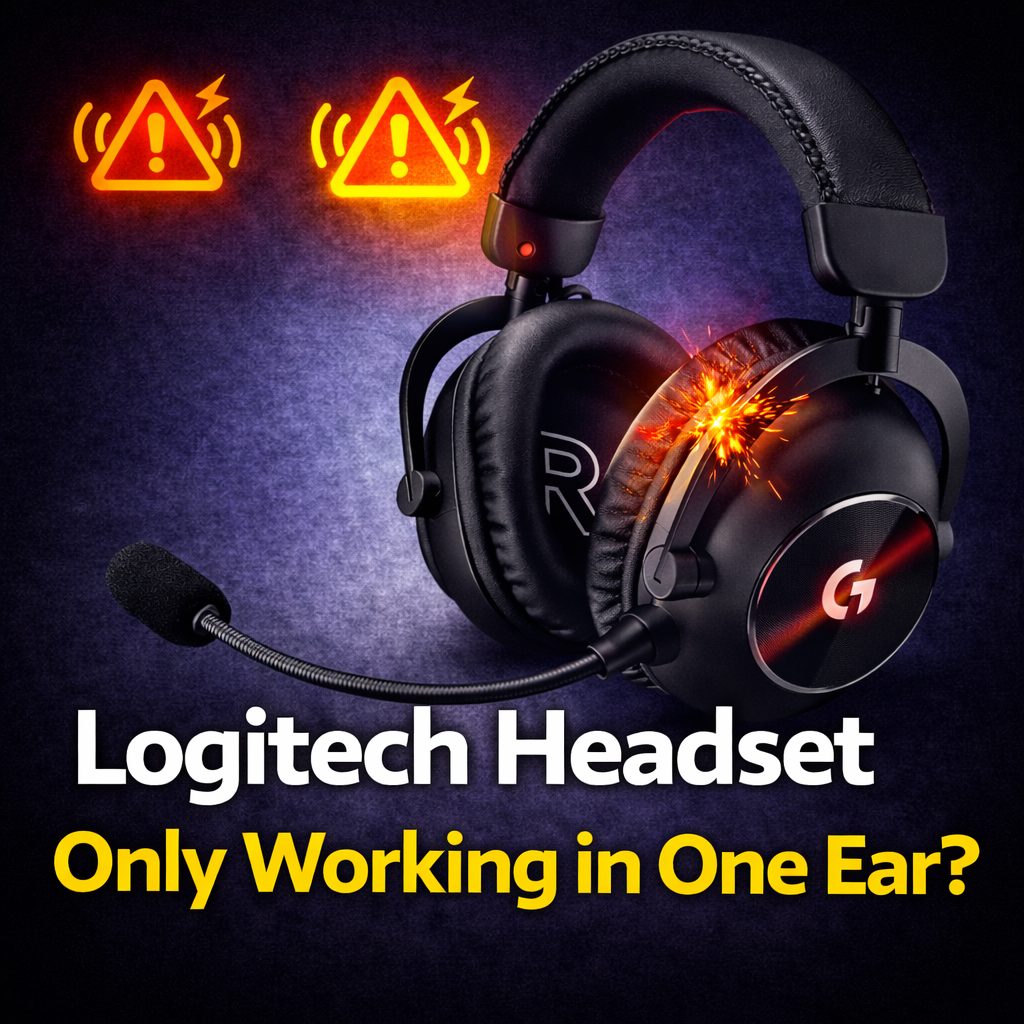
If your Logitech headset only works in one ear, there’s usually a real reason behind it. Sometimes it’s a simple setup problem. Sometimes it’s a cable, port, battery, or internal hardware issue. Logitech’s own troubleshooting for USB and wireless headsets starts with connection, battery, driver/firmware, and sound-device checks before assuming the headset itself has failed. (Logitech Hub)
A one-sided audio problem can show up a few different ways:
Those details matter, because they help separate a setup issue from a real repair issue. Logitech’s support for business headsets also points users to sound settings, USB connection checks, and app/device selection when audio behaves unexpectedly. (Logitech Hub)
This guide works best for common Logitech headset families like:
Those families are current or recent Logitech business/gaming headset lines with active product or support pages covering setup, audio, charging, and connection behavior. (Logitech)
If your Logitech headset is only working in one ear, the most likely causes are:
If the bad side comes back when you move the headset, cable, or hinge, think physical damage first. If it behaves the same way until you switch devices or settings, think setup or connection first. Logitech’s own support emphasizes trying different ports, checking default sound device settings, and verifying the headset is actually recognized properly. (Logitech Hub)
Before you assume the headset is broken, check the easy stuff.
For Logitech USB and wireless headsets, Logitech recommends:
That matters because a one-ear problem can sometimes come from the computer or app side, not the headset itself. (Logitech Hub)
No sound at all from one ear.
That can point to:
That usually points more toward:
That is one of the stronger physical-failure clues.
That usually points more toward:
Logitech’s headset troubleshooting consistently recommends moving between ports/devices and checking sound settings specifically to separate hardware failure from setup issues. (Logitech Hub)
If it is wireless, try pairing or connecting it to another supported device. If it is USB, try another computer.
If the same side is still dead everywhere, that makes a real hardware issue much more likely. Logitech support explicitly recommends testing on another computer when recognition or audio problems persist. (Logitech Hub)
For Logitech USB and wireless-adapter headsets, Logitech recommends trying another USB port and connecting directly instead of through a hub. A weak or flaky USB path can cause recognition and audio issues. (Logitech Hub)
For wireless Logitech headsets, low battery or unstable power can create weird audio behavior. Logitech’s wireless troubleshooting starts by checking charge level and power cycling the headset. (Logitech Hub)
Ask:
Those clues help narrow the problem much faster than just “one side stopped working.”
This is the simplest category.
If the headset:
…then audio can behave unpredictably. Logitech’s own USB/wireless troubleshooting tells users to verify direct adapter insertion, try different ports, and confirm the headset is selected as the default audio device. (Logitech Hub)
This is one of the biggest real repair categories.
If one side:
…that strongly suggests the internal wire path is failing. This kind of issue is especially plausible on headsets with moving hinges, rotating cups, fold points, or heavy daily use. Logitech’s current lineup includes both lightweight business headsets like Zone Vibe Wireless and more robust gaming headsets like PRO X 2, both of which have moving ear cups/hinges and repeated-use stress points. (Logitech)
If one side stays dead or sounds badly distorted no matter what you do, the driver itself becomes more likely.
That is more likely if:
Logitech’s own audio troubleshooting for H-series headsets notes that audio problems can come from the device itself after basic network/system/app causes are ruled out. (Logitech Hub)
On wireless Logitech headsets, unstable battery or wireless behavior can create audio symptoms that feel like a dead ear cup. Logitech’s troubleshooting for wireless headsets starts with battery level, power cycling, connection checks, and driver/firmware updates for exactly that reason. (Logitech Hub)
This is the biggest false alarm category.
If switching devices, changing ports, or reselecting the headset as the output device changes the problem, the issue may be software, routing, or recognition — not a broken speaker. Logitech’s support repeatedly points users to output-device selection and driver/firmware updates before concluding the hardware is bad. (Logitech Hub)
Those buckets line up well with Logitech’s own support flow: first connection and device recognition, then power/battery, then software/driver updates, and only after that the possibility of a hardware fault. (Logitech Hub)
Usually yes if:
Usually less worth it if:
That is especially true for premium lines like PRO X 2 and business models like Zone Vibe Wireless, which sit in a price range where repair can make a lot more sense than replacement. (Logitech)
If your Logitech headset is only working in one ear:
If movement changes the problem, that is often your clue that the issue is physical.
When a Logitech headset comes in with one-sided audio, the real question is not just:
“Is one speaker dead?”
The real questions are:
That is the difference between:
If your Logitech headset is only working in one ear, the most likely causes are:
If the bad side comes back when moved, think wire or hinge first. If it stays dead no matter what, think driver or deeper internal failure. If changing ports or devices changes the symptom, think connection or setup first. Logitech’s own support flow supports exactly that order of troubleshooting. (Logitech Hub)
If your Logitech headset is only working in one ear, don’t guess.
Send Mad Labs Repair your exact model, whether it is wired or wireless, which side is failing, and whether the sound changes when you move the cable, hinge, or ear cup. We’ll help you figure out whether it looks like a setup issue, a damaged wire path, or a repairable hardware problem.
%20(7).png)
Fix what’s worth keeping.
Copyright © 2025 Mad Labs Repair. All Rights Reserved