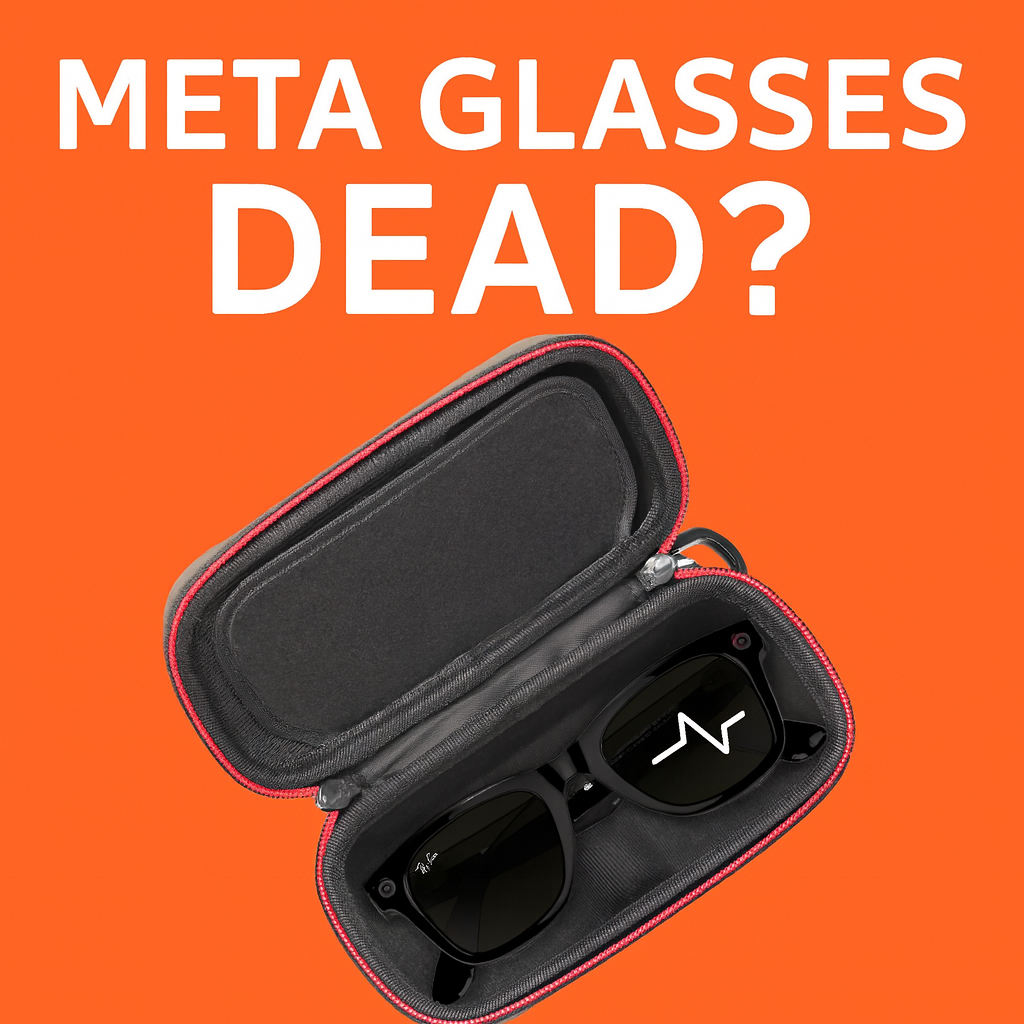
Meta Glasses Dead? Case Light Blinks Then Nothing (Won’t Turn On or Charge)
Your Meta glasses (Ray‑Ban Meta, Ray‑Ban Stories, or Meta Ray‑Ban smart glasses) were working fine… until one day:
- The case LED shows a brief red/orange/yellow light, then goes dark
- The glasses never show any LED at all on the frames
- You’ve tried all the resets and app tricks — nothing
At that point, it feels like some weird software bug.
In reality, this pattern almost always points to a hardware power problem, not your phone or the app.
When You Should Treat It as a Hardware Problem (Not an App Glitch)
Go straight to a repair quote if you’re seeing any combo of:
- Case shows a brief red/orange/yellow light, then goes dark and never seems “full,” no matter how long you leave it plugged in
- Glasses never show any LED on the frames — no white, no chime, no camera indicator — even after hours in the case
- You’ve already tried Meta/Ray‑Ban’s official steps (turn off, dock in case, factory reset case/glasses) and nothing ever changes
If all three are true, you’re past “maybe it’s the app” and firmly in “something in the power chain is failing” territory.
Think your Meta glasses are dead?
Drop your “Get a Meta Glasses Repair Quote” button right here.
What That Short Red/Orange/Yellow Blink Really Means
On healthy Meta / Ray‑Ban cases:
- Green means the case or glasses are mostly/full
- Orange/amber means partially charged or charging in progress
- Red/blinking usually means low battery or a charging error
The LED should stay on for several seconds (or while plugged in) to show charge status — not just blink and vanish.
When you see:
- Plug case into USB‑C
- Light comes on for a second or two, then goes dark and never turns green
…that’s a classic sign the case is trying to start a charge cycle, hitting a fault, and shutting itself down.
It’s not that the LED is “confused” — it’s that the charging electronics or battery aren’t happy.
What’s Usually Failing Inside (Hardware, Not Software)
There are four usual suspects when you’ve got dead glasses plus a flaky case light.
1. Case Battery or Power Board Has Failed
The case is supposed to be a little power bank for your glasses. When its internal battery or power circuitry is bad, you get:
- Case light briefly flashes, then shuts off
- Case never seems to “fill up,” and the glasses never wake
- Behavior doesn’t change with different chargers or cables
In that situation, the case isn’t just “glitchy” — it’s not able to hold or deliver power consistently anymore.
2. USB‑C Port Damage from Strain or Travel
If you:
- Carry the case plugged in
- Yank the cable sideways
- Drop it while charging
…the small USB‑C connector or its solder joints can crack.
Result:
- Case may only charge if you wiggle the cable or use a specific angle
- Sometimes it shows that short orange blink, then nothing, because it never sees a stable power input
This doesn’t show up in the app — it just looks like a mysterious charging problem from the outside.
3. Pogo‑Pin Contacts in the Case Aren’t Delivering Power
Inside the charging slot are tiny spring‑loaded metal pins (pogo pins). They line up with contact pads on the bridge or arms of your glasses.
Over time, those pins can:
- Get stuck down
- Lose their springiness
- Build up sweat, skin oil, corrosion, or pocket gunk
So even if the case has power, almost no current actually reaches the glasses. From your point of view, they just never wake up.
4. Temple Battery or Power IC in the Glasses Is Dead
Sometimes the case is fine, but the glasses are the real problem:
- The tiny batteries inside the temples are worn out, damaged, or over‑discharged
- Or the power‑management chip on the glasses’ board has failed
When that happens, the frames never draw power properly – so they never boot, never show LEDs, and the app never sees them.
Quick, Safe Checks You Can Try at Home (No Tools Needed)
Before you mail anything in, you can run through three low‑risk checks.
1. Try a Different USB‑C Charger & Cable
- Use a known‑good USB‑C cable (one that charges your phone or another device fine)
- Use a simple 5–20 W wall adapter from a reputable brand
- Plug directly into the wall — not a USB hub, monitor, or car port
If the case still only shows a very brief light and then nothing, it’s extremely unlikely all your chargers are bad.
2. Clean the Contacts on the Bridge and Inside the Case
Meta/Ray‑Ban call out dirty contacts as a major cause of charging failures: dried sweat, skin oils, dust, and liquid can block the charge interface between the nose bridge and the case.
Do this:
- Turn the glasses off if you can
- Use a soft, slightly damp cloth with mild soap (no harsh chemicals)
- Gently clean:
- The metal pads/contacts on the bridge of the glasses
- The metal pins inside the case where the nose bridge rests
- Let everything dry fully, then dock the glasses and try charging again
If dirty contacts were the whole issue, you’ll usually see a proper steady or pulsing charge LED instead of that blink‑and‑die behavior.
3. Let the Case Charge “Unplugged”
This sounds backwards, but we’ve seen it:
- Some cases behave differently when plugged in vs running off their internal battery
- If there’s a weird interaction with the charger or a flaky power board, you might only see normal behavior once the case has had time to fill up and then run on its own
Try this:
- Plug the case in with glasses docked and leave it for at least 1–2 hours
- Unplug the cable
- Open/close the case and watch the LED and the glasses
If you still get no LED on the frames and the same tiny blink on the case, you’ve done your part. It’s not a settings issue anymore.
At That Point… It’s a Hardware Repair
If you’ve:
- Swapped chargers and cables
- Cleaned the bridge and case contacts properly
- Given the case a real chance to charge
…and your Meta glasses are still completely dead, you’re not dealing with mysterious software.
You’re almost certainly looking at one of four things:
- A failed case battery or charge board
- A damaged USB‑C port
- Worn or stuck pogo pins in the case
- A dead battery or power IC in the glasses themselves
Those are all things a repair bench can test, diagnose, and in many cases physically fix or replace.
How a Lab Like Mad Lab Repair Handles “Dead Case / Dead Glasses”
Here’s what happens when a set like this hits a professional bench.
1. Case diagnostics
- Measure how the case draws power from the wall
- Check if it actually charges its own battery
- Test voltage on the pogo pins where the glasses dock
2. Case repair
- Replace a bad case battery
- Reflow or replace a damaged USB‑C connector
- Clean, re‑spring, or replace pogo pins if they’re stuck or corroded
3. Glasses diagnostics
- Carefully open the temples
- Test the tiny internal batteries
- Inspect and meter the power circuitry for shorts or failed components
4. Burn‑in testing
- Multiple charge/discharge cycles
- Check that case LEDs behave correctly
- Confirm glasses power on reliably and stay stable
You get back your original frames, not a random refurb — which matters if you’ve got prescription lenses or a style you actually like.
Ready to Get a Real Diagnosis on Your Dead Meta Glasses?
If your Meta glasses:
- Refuse to turn on
- Live in a case that only blinks and dies
- Ignore every reset and app reinstall you throw at them
…then you’re not dealing with user error. You’re dealing with hardware.
That’s what we fix.
Get a Meta Glasses “Won’t Turn On / Won’t Charge” Repair Quote – Mad Lab Repair
Have them tell you the model, what the lights do (or don’t do), and how long it’s been happening — and you’ve got a tight, symptom‑driven page ready to convert.

%20(7).png)