Projector Keeps Shutting Off or Overheating?
Complete Troubleshooting & Repair Guide (BenQ, Epson, Optoma, LG, Sony & More)
By Mad Lab Repair
Updated July 2026
If your projector:
- Runs for a few minutes, then shuts off
- Shows a temperature light or “fan error”
- Sounds like a jet engine and then dies
- Only stays on in Eco mode
…this guide is for you.
We’ll walk through:
- What “overheating” actually means inside a projector
- Safe checks you can do at home (no disassembly)
- How to tell heat problems from power problems
- Why brands like BenQ, Epson, Optoma, LG, Sony, Hisense, Anker Nebula, AWOL all run into this
- When it’s time for a mail‑in repair instead of more guessing
Mad Lab Repair specializes in mail‑in projector repair, including cooling and overheating issues, so you don’t have to hunt down a local AV shop.
On this page
- Who this guide is for
- How projectors cool themselves (and why they overheat)
- Symptom → likely cause overview
- Step 1 – Easy checks anyone can do safely
- Step 2 – Diagnose by symptom pattern
- Common patterns across major brands & models
- When to stop DIY and send it in
- How Mad Lab Repair’s mail‑in projector service works
- Brands & models we commonly see
- FAQ
- Next step
1. Who this guide is for
This guide is for you if your projector:
- Turns on, shows an image, then shuts off after a few minutes
- Runs longer in Eco/low brightness, but shuts off in brighter modes
- Displays messages like:
- “Overheating”
- “Temperature warning”
- “Fan error” / “Fan error 1 / 2 / 3”
- Has a red temp light or similar warning LED
- Feels very hot around the vents or case
These symptoms are extremely common on:
- Home theater projectors (BenQ, Epson, Optoma, ViewSonic, LG, Sony, JVC, Hisense, AWOL, etc.)
- Office/classroom projectors that run for long sessions
- Portable / smart projectors (Anker Nebula, XGIMI, BenQ GV‑series, etc.)
We’ll focus on overheating and cooling issues. If your projector never powers on at all, that’s more of a pure power/electronics problem.
2. How projectors cool themselves (and why they overheat)
Most projectors—lamp, LED, or laser—have some combination of:
- Intake and exhaust vents
- Cooling fans (often multiple, for lamp/laser, power supply, and imaging block)
- Air filters that catch dust
- Temperature sensors that watch how hot things get
- Protection logic: if temps or fan speeds look wrong → shut down
Overheating happens when:
- Air can’t move (blocked vents, clogged filters, dust inside)
- Fans slow down, seize, or their speed sensors fail
- The projector is run in a hot, small, enclosed space
- A new lamp runs hotter, stressing an already dusty system
The projector isn’t being dramatic—if it didn’t shut down, it could cook its own lamp/laser or electronics.
3. Symptom → likely cause overview
Not all shut‑offs are heat, but these patterns are very common:
- Shuts off after 2–15 minutes, then will restart after a cool‑down
Likely:- Overheating (dust, blocked vents, bad airflow)
- Failing fan / fan speed problem
- Temperature sensor getting hot or mis‑reading
- Shows “fan error” or temp + fan lights, then shuts down
Likely:- At least one fan not spinning properly
- Fan is spinning but RPM signal not reading correctly
- Fan controller / tach circuit issue
- Very loud fan all the time, then shutdown
Likely:- Projector is pushing max cooling due to high temperature
- Dust inside causing poor airflow
- Lamp/laser running very hot
- Shuts off randomly, no temp light
Possible:- Loose power cable / outlet issue
- Power supply / main board fault
- Lamp ballast issues
This guide concentrates on the temperature and cooling side. If your projector dies silently with no warning lights and no pattern, you might be facing more of a power issue than a heat problem.
4. Step 1 – Easy checks anyone can do safely
These steps do not require opening the projector.
4.1. Make sure it can breathe
Check the projector during use:
- Are intake and exhaust vents pushed up against a wall, curtain, or other object?
- Is it in a cabinet, shelf cubby, or tight enclosure with little space around it?
- Is there anything directly blocking vents (books, boxes, dust build‑up, pet hair)?
Basic rules:
- Give it a few inches of clearance on all sides of the vents.
- Don’t run it in a closed box or closet without airflow.
- Avoid stacking objects on top that trap heat.
Sometimes just moving it so it has open air fixes early‑stage overheating.
4.2. Check and clean user‑accessible filters
Many projectors (especially from BenQ, Epson, Optoma, ViewSonic, etc.) include a removable dust filter on the intake side.
- Power off and unplug the projector.
- Let it cool completely.
- Look for a filter door or panel (often on the side or bottom, sometimes labeled).
- Remove the filter and:
- Tap it gently outdoors to knock out dust, or
- Use compressed air from the clean side outwards (short bursts).
If the filter is heavily clogged, airflow drops and internal temps spike. Cleaning can make a big difference.
4.3. Gently clear external vents
While the projector is off and cool:
- Use a soft brush or vacuum (low power) around the vent grilles.
- Do NOT shove anything inside or blast high‑pressure air deep into the projector—that can push dust further into sensitive areas.
You’re just trying to clear obvious external fluff and dust mats that block airflow.
4.4. Verify power and cabling
Because “projector keeps shutting off” can be power or heat:
- Make sure the power cable is firmly seated at the projector and outlet.
- Try a different outlet or power strip.
- If you’re on a long extension cord, test without it.
If the projector shuts down after seconds and there’s no temp or fan warning, power problems are more likely than overheating.
4.5. Check the room and usage pattern
Some projectors are rated for:
- Specific ambient temperatures
- Specific altitudes (with a “high altitude” fan mode for thin air)
Consider:
- Is the room very hot (e.g., attic, unventilated space)?
- Is the projector in ceiling‑mounted position near the ceiling, where hotter air collects?
- Are you running max brightness for long sessions?
Using Eco or lower brightness mode temporarily can reduce heat load and help you test whether temperature is the main issue.
5. Step 2 – Diagnose by symptom pattern
Now that you’ve done the safe basics, let’s look at what your projector is actually doing.
5.1. Shuts off after 5–30 minutes, temp light or “overheat” warning
Classic overheating pattern:
- Projector starts normally
- Fan gets louder over time
- After a while, picture disappears, fan may run briefly, then projector powers off
- A temperature light or message appears, or a temp icon flashes on the case
If you let it cool, it works again for a while and then repeats.
If cleaning filters/vents and giving it more space does not change how long it takes to shut off, you might be dealing with:
- Dust buildup inside on fans and heatsinks
- A fan that’s slowing down or intermittently failing
- A thermal sensor that’s reading too hot (even if actual temps aren’t extreme)
That’s when it starts to become a lab job.
5.2. “Fan error” message or fan error codes (Fan 1, Fan 2, etc.)
Many projectors will show:
- “Fan error”
- “Fan 1 error” / “Fan 2 error”
- A code plus a fan icon
These typically mean:
- One of the fans isn’t spinning at the expected RPM
- The fan runs but the tach signal (speed feedback) isn’t being read correctly
- The fan controller circuit has an issue
You might see:
- Projector powers on
- In 10–60 seconds, it shows a fan error warning
- Then it shuts off automatically (sometimes with a countdown)
User‑safe steps here are limited:
- Double‑check filters and vents again
- Make sure the projector isn’t physically blocked or tilted in a way that interferes with fans
But if you’re consistently seeing a fan error, that’s almost always an internal hardware/service situation: fan replacement, sensor check, or controller repair.
5.3. Very loud fans, then shutdown
If your projector is running full blast on the fans all the time and still shutting down:
- The system is trying to cool as hard as it can
- Either:
- There’s too much dust and poor thermal contact inside, or
- Something like the lamp or laser block is running abnormally hot, or
- A thermal sensor is mis‑reading and over‑reacting
This is another sign that basic cleaning isn’t enough and deeper inspection is needed.
5.4. Shuts down right after lamp replacement
If you just installed a new lamp or light module and now:
- The projector runs briefly, then shuts off
- Shows fan/overheat messages or logs
…then you might have:
- A lamp that’s running hotter than the old one (especially some third‑party lamps)
- Dust disturbed during the lamp swap
- A fan or sensor that was already borderline, now pushed over the edge
Lamp swap + “fan error” or overheating is commonly discussed in projector lamp troubleshooting guides.
This often needs professional diagnosis to determine if the lamp, fan, or sensor system is at fault.
5.5. Random shut‑offs with no clear temp or fan warnings
If your projector just clicks off, no temp light, no fan error, no slowdown first:
- It could still be heat, but it’s more likely:
- Power supply issues
- Loose connections
- Faulty main board
You can still do the airflow and filter checks, but if you’re not seeing any warning lights, it might be a different kind of repair.
6. Common patterns across major brands & models
Every projector brand does cooling a little differently, but the failure patterns are surprisingly similar.
6.1. BenQ home theater & gaming projectors
BenQ has a big lineup of popular home theater and gaming projectors (HT‑series, TK‑series, X‑series, GV‑series, and newer 4K gaming models like the TK700STi and X500i).
Real‑world reports often mention:
- Fan errors (e.g. Fan 1, Fan 2, “fan error 3”)
- Overheating warnings on older or dusty units
- Shutdown shortly after startup with a fan or temp code
Common causes:
- Dust‑clogged filters and internal fans
- Age‑related fan failure (bearing noise, slow start, low RPM)
- Tach feedback issues where the fan spins but the projector thinks it doesn’t
These usually require:
- Opening the unit
- Cleaning / replacing fans
- Verifying or replacing the fan controller / sensor circuits
6.2. Epson, Optoma, ViewSonic and other lamp‑based projectors
Epson PowerLite / Home Cinema, Optoma HD/UHD lines, and similar models from ViewSonic and others share a lot of the same traits.
Typical patterns:
- Projector works for a while, then temp light and shutdown
- After cleaning filters, problem sometimes improves a bit then returns
- Fan error codes or logs after years of use
Common culprits:
- Dust buildup on:
- Filters
- Fans
- Heatsinks and lamp housings
- Failing fans that no longer move enough air
- Thermal sensors that trigger earlier due to poor cooling contact
There are many forum threads where owners of Optoma HD27, BenQ W1070, Epson PowerLite models, etc., describe exactly this loop: clean filter → temporarily better → then still overheats → eventually fan or sensor replacement is needed.
6.3. Laser / LED and ultra‑short‑throw (UST) projectors
Newer laser/LED and ultra‑short‑throw projectors (Hisense USTs, AWOL Vision LTV‑3000 Pro, Epson LS‑series, LG and Sony laser models, etc.) still have:
- Fans
- Heat sinks
- Thermal sensors
- Protection logic
They can still overheat if:
- They’re placed in a TV stand or cabinet with poor airflow
- Dust builds up internally over a couple of years
- Fans slow down or sensors mis‑read
The difference is that instead of a hot lamp, you have a laser/LED engine that also needs healthy cooling. Long life assumes clean airflow.
6.4. Portable & “all‑in‑one” smart projectors
Portable 4K/1080p projectors like Anker Nebula X1 / Mars series, XGIMI, some BenQ GV models, and others pack:
- Bright light sources
- Speakers
- Media players
…all into small enclosures. That’s a lot of heat in a tight space.
Common symptoms:
- Overheating shutdown when used outdoors in hot weather
- Shutdown after an hour in a hot room
- Fan noise spikes before shutdown
These often need:
- Internal cleaning
- Fan replacement if bearings wear
- Sometimes a re‑seat or replacement of thermal pads/sensors
7. When to stop DIY and send it in
Time to stop guessing and consider mail‑in repair if:
- The projector still shuts off after 5–30 minutes despite:
- Cleaned filters
- Open airflow
- Reasonable room temps
- You see repeated fan error or overheat warnings every time you try to use it
- The unit shuts down immediately with fan/temp lights despite basic cleaning
- Fans don’t start at all, or you hear scraping/grinding noises from inside
- You’re on the verge of opening the case but aren’t experienced with electronics
Internal cooling work involves:
- Live power supplies
- High temperatures
- Sensitive boards and optics
It’s usually not worth turning a $700–$3000 projector into a dead brick for the sake of “DIY curiosity.”
8. How Mad Lab Repair’s mail‑in projector service works
Here’s how we handle projectors that are shutting off or overheating.
Step 1 – Quick online intake
You tell us:
- Brand & model (e.g. BenQ HT5550, TK700STi, X500i; Epson Home Cinema / Pro Cinema; Optoma UHD; Hisense UST; AWOL laser; Anker Nebula, etc.)
- Symptoms:
- Shuts off after X minutes
- Fan error codes
- Temp lights
- Loud fan, burning smell, etc.
We confirm it’s a good fit for mail‑in service and give you packing guidance.
Step 2 – Safe shipping
Before shipping, you:
- Power down and let the projector fully cool
- Remove any ceiling mount brackets or external accessories
- Pack the projector in a padded box (original box is ideal if you still have it)
We help you avoid flexing the case or vents and advise on safe shipping options.
Step 3 – Diagnostic & airflow inspection
When your projector arrives, we:
- Inspect external condition and vents
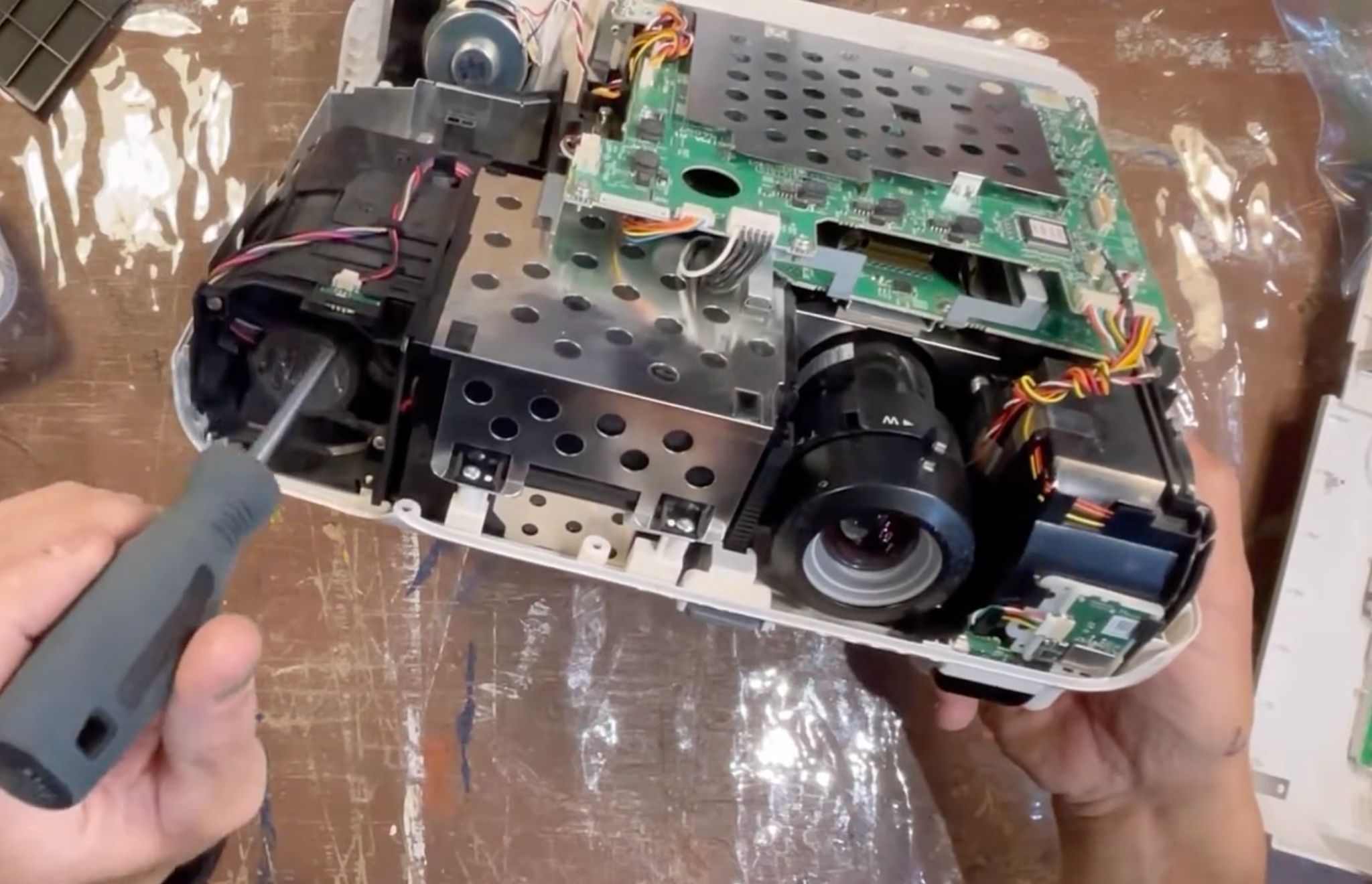
- Open the case and:
- Check dust levels on filters, fans, and heatsinks
- Test each fan’s RPM and response
- Inspect thermal sensors and wiring
- Run controlled tests to reproduce the overheating or shutdown
You get:
- A clear explanation of what’s causing the shutdown (fan, dust, sensor, etc.)
- A custom repair recommendation based on your actual unit
Step 4 – Cooling system repair & cleaning
If you approve, we:
- Replace or repair failing fans and related components
- Clean internal heatsinks, baffles, and airflow channels
- Address sensor and board issues related to thermal control when possible
- Reassemble and run extended stress tests to confirm stable operation
The goal: a projector that can run a full movie, game session, or presentation without thermal drama.
Step 5 – Return shipping & basic care tips
We pack the projector carefully and ship it back to you with:
- Basic airflow and placement advice
- Filter maintenance reminders specific to your model
So you don’t end up right back in the same overheating loop.
9. Brands & models we commonly see for overheating / shutdown issues
This is not an exhaustive list, but here are some projectors that frequently show up with “keeps shutting off / overheating / fan error” symptoms:
BenQ
- W1070 / W2000 and similar 1080p home theater models
- HT‑series and TK‑series 4K models (HT3550, TK700STi, TK850, etc.)
- Portable and smart projectors like GV‑series
Epson
- PowerLite series (office/classroom)
- Home Cinema / Pro Cinema lines (e.g. Home Cinema 3800, Pro Cinema LS11000)
Optoma, ViewSonic and similar
- Popular 1080p and 4K DLP models such as Optoma HD27/HD27HDR, UHD60 and related
UST & laser/LED projectors
- Hisense UST / laser TV models (e.g. Hisense C2 Ultra)
- AWOL Vision LTV‑3000 Pro and similar high‑brightness USTs
- Other premium laser projectors with strong light output and complex cooling systems
Portable & smart projectors
- Anker Nebula series (e.g. Nebula X1, Mars / Cosmos lines)
- Other compact Android TV / Google TV projectors where everything runs in a small enclosure
If your projector isn’t listed but the symptom is “runs, then overheats or shuts off,” there’s a very good chance it’s fixable with proper cooling system service.
10. Projector overheating / shutdown FAQ
Q: My projector shuts off after 10–15 minutes but works again later. Is it really overheating?
A: That on/off pattern is a textbook sign of a thermal protection shutdown. It runs until components reach a threshold, then shuts down to protect itself, then restarts once cooled.
Q: I cleaned the filter and vents but it still shuts off. What now?
A: That often means the dust and heat issues are inside—on fans, heatsinks, or sensors. At that point, you’re usually beyond what can be solved without opening the case.
Q: Can I run the projector with the filter removed?
A: Running without a filter may temporarily improve airflow, but it also lets dust rush in, which can clog fans and optics faster. It’s better to clean or replace the filter properly than to run filter‑less.
Q: Is it okay to use compressed air inside the projector?
A: Blasting high‑pressure air into the vents can blow dust further into fan bearings or optics. If you’re not opening it correctly and cleaning in a controlled way, you can easily make a mess. Light external cleaning is fine; deep internal cleaning is best left to a repair lab.
Q: Can overheating damage my projector permanently?
A: Yes, if thermal protection fails or is ignored. Excess heat can shorten lamp life, degrade LCD/DLP panels, and stress electronics. The shutdown behavior is there to prevent exactly that.
Q: My projector is new but still overheats. Does that mean it’s defective?
A: Not necessarily. Many overheating complaints turn out to be:
- Tight shelves or cabinets with no airflow
- Vents against walls
- Running in high‑brightness mode in a hot room
But if you’ve checked your environment and a new projector still overheats, it may need warranty service or repair.
11. Next step: get a real diagnostic on your overheating projector
If your projector:
- Keeps shutting off mid‑movie, mid‑game, or mid‑presentation
- Shows temperature or fan error warnings
- Runs fans at max volume and still bails out
…you’re probably beyond basic filter cleaning.
You don’t have to guess whether it’s a fan, sensor, dust, or something else.
Mad Lab Repair offers mail‑in projector repair for common brands, including:
- BenQ
- Epson
- Optoma
- ViewSonic
- LG
- Sony
- Hisense
- AWOL
- Anker Nebula and other smart/portable models
Tell us your brand, model, and exact symptoms. We’ll:
- Let you know if it’s a good candidate for repair
- Explain what the process looks like
- Tell you how to pack and ship it safely
So your projector can do what it’s meant to do: stay on, stay cool, and stay out of your way.

%20(7).png)