Last updated: June 6, 2026
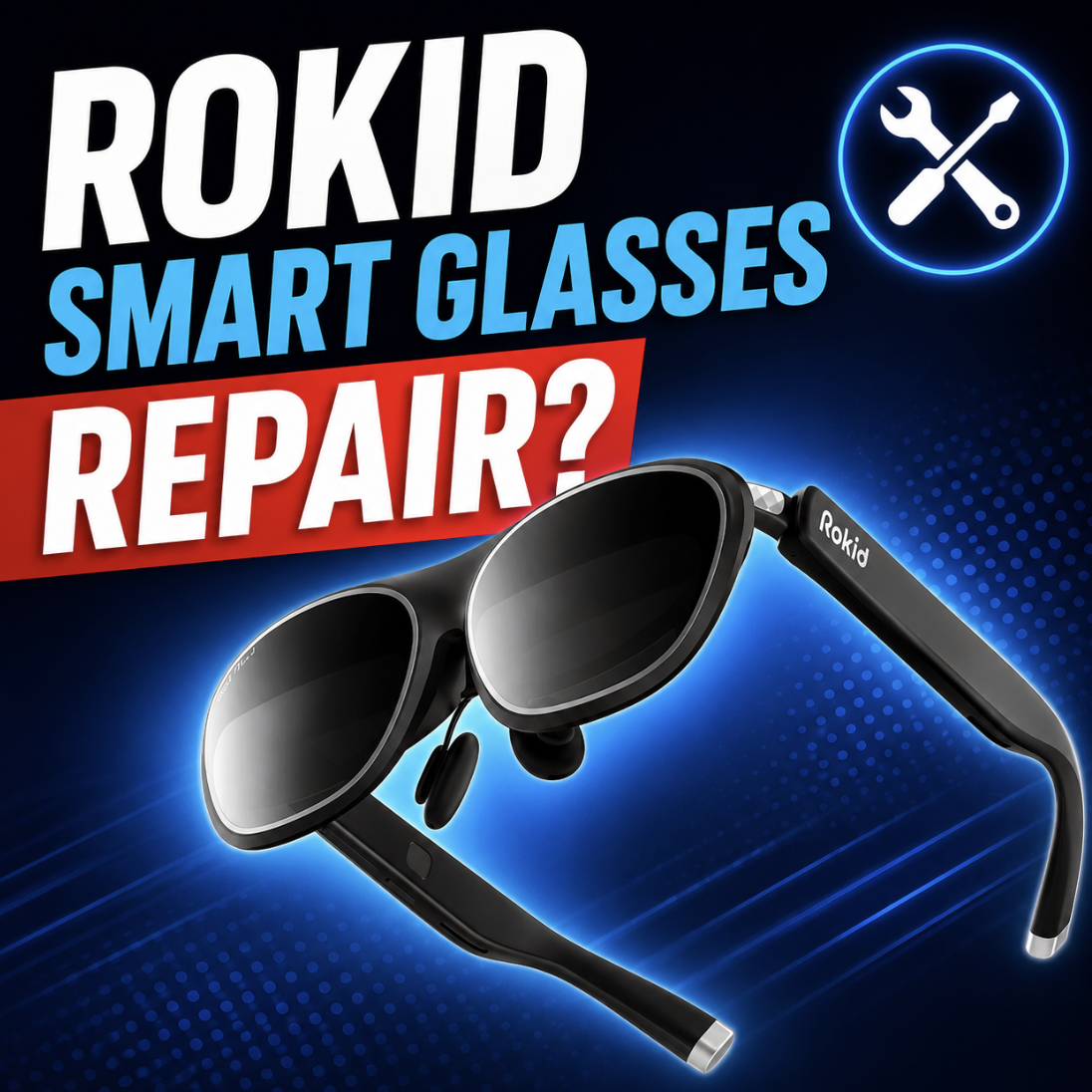
Rokid Smart Glasses Repair: Mail-In Help for Max, Max 2, AR Spatial, AI Glasses, Display, Audio, Charging, and Station Problems
Rokid repair starts with one simple question: which Rokid product is actually failing?
A Rokid Max black screen is not the same problem as a Rokid AI Glasses Style charging issue. A Rokid Station 2 blank screen is not automatically a bad pair of glasses. A blurry Rokid Max 2 image may be myopia adjustment, fit, IPD, lens inserts, eye strain, or display damage. A Rokid Glasses microphone problem may be app permissions, pairing, charging, or real hardware failure.
Mad Labs offers independent mail-in repair help for Rokid smart glasses and accessories. We are not Rokid warranty service. If your Rokid product is still under warranty and the issue looks like a covered quality defect, contact Rokid support first.
First: do you have Rokid display glasses, AI glasses, AR glasses, or Station?
This page is not written like a one-size-fits-all repair page because Rokid does not make just one kind of smart glasses. Some Rokid products are display glasses. Some are AI glasses with camera and audio features. Some are AR display glasses that depend on USB-C video, HDMI adapters, Rokid Station, or Station 2.
Important: Do not mail in the glasses before checking whether the problem is really the glasses. For Rokid, the failed part could be the source device, HDMI adapter, Station, Station 2, charging cable, charging case, Hub, app setup, or accessory path.
Before you mail in Rokid glasses, check these first
These checks help sort real hardware damage from setup issues. They also help you send the right part if mail-in diagnosis is needed.
Mail-in repair makes more sense when the issue follows the glasses or accessory after these basic checks.
Rokid Max, Max 2, and AR Spatial no display problems
No display is one of the biggest Rokid Max and Max 2 repair searches, but it is not always a repair. These glasses need the right video path. If the phone, laptop, handheld, adapter, or Station setup is not sending video correctly, the glasses can look dead even when they are not broken.
| What you see | Check first | Repair is more likely when |
|---|---|---|
| No picture on one phone | Confirm the phone supports DisplayPort over USB-C. | The glasses fail on multiple known-compatible devices. |
| No picture through HDMI | Power the HDMI adapter and check the HDMI source. | Direct USB-C also fails or the adapter/glasses port is damaged. |
| One eye black | Test another compatible device and inspect cable/port behavior. | The same lens stays dark everywhere. |
| Display cuts out when moved | Inspect USB-C cable, connector, and glasses-side port. | The image is angle-sensitive or the port feels loose. |
Good first test: Try the glasses on a known-compatible USB-C DisplayPort device. If they work there, the problem is probably not the display hardware.
Rokid Station, Station 2, Joy 2, and multi-screen issues
Rokid Station and Station 2 create a different repair path. If the glasses work directly but fail only through Station, the issue may be Station software, app behavior, audio routing, Bluetooth, power, or the way the source is being projected.
Do not send only the glasses if the issue is Station-only. If the problem appears only with Station, Station 2, Joy 2, Hub, or an adapter, that accessory may need to be included or described clearly.
Rokid Glasses and AI Glasses Style: camera, mic, app, and charging issues
Rokid Glasses and Rokid AI Glasses Style are closer to smart eyewear than simple display glasses. The repair path is more about charging, camera, microphone, speakers, app connection, Bluetooth/Wi-Fi, buttons, frame hardware, and accessories.
Important distinction: Rokid AI Glasses Style is a non-display product. If you own that model, a “black screen” complaint usually means you are troubleshooting the wrong product category.
Magnetic charging cable, charging case, and Power Capsule problems
Rokid’s smart-glasses charging path is brand-specific. The dedicated charging cable uses a 3-pin magnetic connector for Rokid Glasses and Rokid AI Glasses Style. Charging cases and Power Capsule accessories add another layer, so the failed part may not be the glasses themselves.
Send the right part: If the issue only happens with a charging case, Power Capsule, or magnetic cable, describe that clearly or include the accessory.
Blurry image, myopia adjustment, IPD, VAC, and fit
Rokid Max and Max 2 blur is not always a display failure. Myopia adjustment, pupil alignment, nose fit, lens inserts, prescription needs, and eye comfort all matter. Some eye strain or double-image feeling can come from how AR displays work, not from a broken panel.
Plain English: Blur from day one is usually fit, focus, or prescription-first. Sudden blur after damage is more repair-like.
Audio, speaker, microphone, and Bluetooth routing issues
Rokid audio can route through the glasses, the source device, Station, Station 2, or Bluetooth earbuds. No sound is not automatically a bad speaker.
| Symptom | Check first | Possible repair path |
|---|---|---|
| No sound from Max / Max 2 | Host audio output, app volume, Station path, and cable connection. | Speaker or internal diagnosis if sound fails across correct setups. |
| No sound through Station | Station audio routing, app volume, Bluetooth device pairing, and restart/update. | Station diagnosis if glasses work elsewhere. |
| One speaker dead | Test another source, app, cable path, and Station/direct setup. | Possible speaker, flex, connector, or board issue. |
| Microphone not working | App permissions, AI/call/translation settings, and source input selection. | Mic diagnosis if settings are correct and it still fails. |
| Earbuds not working | Check whether earbuds should be paired to Station/Station 2 instead of the glasses. | Usually routing first, not hardware repair first. |
Prescription frame, lens inserts, nose pads, hinge, and physical damage
Physical damage is one of the clearest mail-in repair categories. App updates and compatibility checks will not fix a broken hinge, cracked frame, damaged temple, loose charging pins, or broken prescription frame.
Mail-in repair vs DIY checks vs Rokid support
The right path depends on product family, warranty status, and whether the issue follows the hardware after simple checks.
| Situation | Best path | Why |
|---|---|---|
| Within warranty, no physical damage | Contact Rokid support first. | A covered quality defect may belong in Rokid’s warranty process. |
| Max no display on one phone | Compatibility troubleshooting. | The phone may not output DisplayPort over USB-C. |
| HDMI no picture | Adapter power/setup check first. | The adapter path may need power or the correct cable direction. |
| Station-only failure | Station troubleshooting first. | The glasses may not be the failed part. |
| Magnetic charging connection is loose | Mail-in diagnosis. | Physical charging-contact issues usually need hands-on inspection. |
| One eye dark on every setup | Mail-in diagnosis. | This can point to display, flex, connector, or board failure. |
| Broken frame, hinge, or nose pad | Mail-in physical repair evaluation. | Software will not fix broken hardware. |
Independent mail-in diagnosis is most useful for out-of-warranty devices, secondhand purchases, physical damage, charging-contact damage, liquid exposure, broken frames, accessory failures, or symptoms that follow the hardware across normal troubleshooting.
What to send with your mail-in request
A good request tells us the exact Rokid product, what failed, what device you tested, and whether Station, Station 2, a charging case, magnetic cable, Hub, HDMI adapter, or lens insert is involved.
Need mail-in help for Rokid smart glasses?
Rokid repair starts by identifying the right product family. A Rokid Max display issue, a Station 2 blank screen, a Rokid Glasses charging problem, and an AI Glasses Style microphone issue all need different troubleshooting.
Send your model, symptom, and clear photos of the issue. Mad Labs can help sort whether it looks like mail-in repair, accessory troubleshooting, setup correction, or something Rokid warranty support should handle first.
FAQ
Do you repair Rokid smart glasses?
Mad Labs offers independent mail-in repair help for Rokid smart glasses and accessories. Common repair candidates include charging-contact problems, one display not working, intermittent video, speaker or microphone failure, camera issues, broken frames, and accessory failures.
Which Rokid models can be diagnosed?
Common Rokid products include Rokid Glasses, Rokid AI Glasses Style, Rokid Max, Rokid Max 2, Rokid AR Spatial, Rokid Station, Rokid Station 2, Rokid Hub, charging case, magnetic charging cable, lens inserts, and related accessories.
What is the difference between Rokid Glasses and Rokid AI Glasses Style?
Rokid Glasses are display smart glasses with AI, camera, microphone, audio, and charging features. Rokid AI Glasses Style is a non-display AI glasses product, so it should not be diagnosed like a black-screen AR display problem.
Why do my Rokid Max or Max 2 glasses have no display?
No display can be caused by an unsupported USB-C video source, wrong cable, HDMI adapter power issue, Station path issue, loose connector, or internal hardware failure. Test with a known-compatible USB-C DisplayPort device first.
Why does my Rokid HDMI adapter show no picture?
HDMI-to-USB-C adapter setups may need separate USB power and the correct cable direction. Check adapter power and the HDMI source before assuming the Rokid glasses are broken.
Why is my Rokid Station 2 screen blank?
A blank Station 2 screen may be Station setup, app, update, power, projection, or connection related. If the glasses work directly on a compatible device, troubleshoot Station 2 before blaming the glasses.
Why do my Rokid glasses work on one device but not another?
The most common reason is compatibility. Some USB-C ports charge or transfer data but do not output video. Rokid Max-style glasses need a compatible video-output path.
Why is one side of my Rokid display not working?
One side not working can be caused by cable or connector issues, display module failure, internal flex damage, or board-level issues. If the same side stays dark across compatible setups, mail-in diagnosis may make sense.
Can a loose Rokid USB-C or magnetic charging connection be repaired?
A loose, damaged, or angle-sensitive charging or USB-C connection is a strong mail-in diagnosis candidate. Stop forcing the connector and send clear photos of the port, cable, and charging contacts.
Why are my Rokid Max glasses blurry or causing eye strain?
Blur or eye strain can be related to myopia adjustment, fit, IPD, nose pads, lens inserts, prescription needs, or normal AR focus discomfort. Sudden blur after damage is more repair-like than blur that was present from day one.
Why is there no sound from my Rokid glasses?
Check the source device audio output, app volume, Station or Station 2 routing, Bluetooth routing, and cable path first. If one speaker is dead across correct setups, mail-in diagnosis may be needed.
Why is my Rokid AI glasses microphone or camera not working?
Check app permissions, pairing, firmware/app behavior, lens cleanliness, and whether the feature fails across normal uses. If the camera or microphone still fails after setup checks, hardware diagnosis may make sense.
Do I need to send Station, Station 2, charging case, cable, or adapter too?
If the problem only happens with Station, Station 2, Hub, HDMI adapter, charging case, magnetic cable, or Power Capsule, include that accessory or describe the setup clearly. Sometimes the accessory is the failed part.
Should I contact Rokid warranty first?
If your Rokid product is still within warranty and the issue looks like a covered quality defect, contact Rokid support first. Independent mail-in repair is usually more useful for out-of-warranty, physically damaged, secondhand, liquid-exposed, or warranty-ineligible devices.
Is Rokid repair worth it or should I replace the glasses?
It depends on the model, damage, part availability, warranty status, and replacement cost. A loose charging connection, broken frame, one-eye display failure, accessory issue, or physical damage may be worth diagnosing before replacing the device.
%20(7).png)