Last updated: June 6, 2026
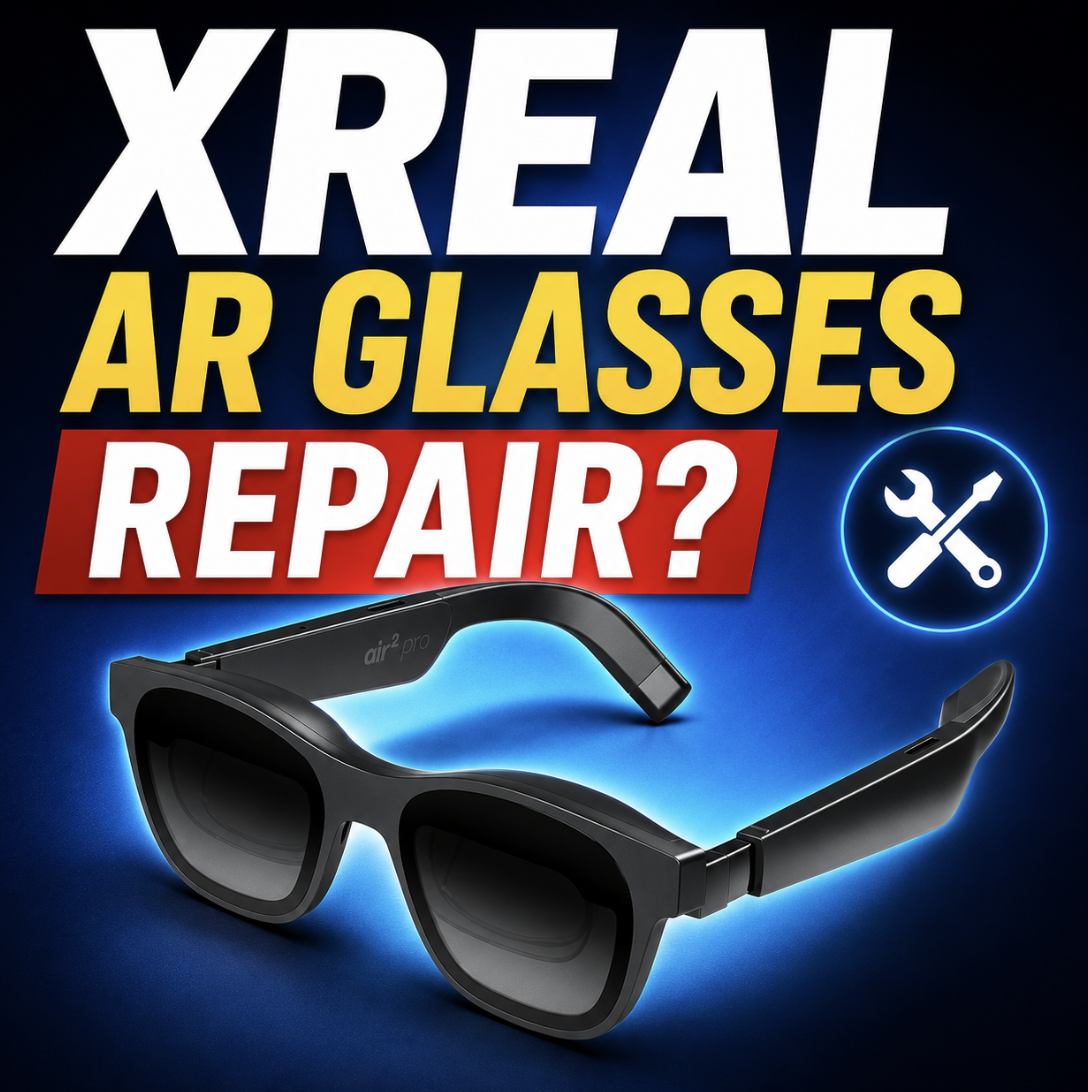
XREAL AR Glasses Repair: Mail-In Help for Air, One, Beam, USB-C, Display, Audio, and Frame Problems
XREAL problems can be tricky because the glasses are only one part of the setup. A black screen might be a bad USB-C port, but it might also be a laptop that does not output video over USB-C. No sound might be a speaker problem, but it might also be the wrong audio mode. Blurry edges might feel like a bad display, but it might be IPD, nose-pad position, or prescription lens alignment.
That is why this guide starts with the whole signal chain before talking about repair. If you have XREAL Air, Nreal Air, Air 2, Air 2 Pro, Air 2 Ultra, XREAL One, One Pro, 1S, ROG XREAL R1, Beam Pro, Hub, Eye, or an adapter that is not working, the goal is to figure out whether the issue is setup, software, accessory, fit, or true hardware damage.
Mad Labs offers independent mail-in repair help for XREAL AR glasses and accessories. We are not XREAL warranty service. If your device is still under XREAL warranty and the issue looks like a covered manufacturer defect, contact XREAL support first.
The XREAL signal chain: do not blame the glasses too fast
With XREAL, the problem can be anywhere in the path. The glasses may be fine, but the source device, cable, Beam, Hub, HDMI adapter, audio mode, screen mode, or fit may be the real issue.
Important: A no-display problem is not automatically a broken display. Test the glasses with a known-compatible USB-C DisplayPort device before assuming they need repair.
Which XREAL product are you using?
XREAL has changed a lot since the Nreal Air days. Some devices are simple display glasses. Some have more onboard spatial features. Some problems come from accessories like Beam Pro, Hub, Eye, HDMI adapters, or prescription inserts.
Nreal note: XREAL was formerly Nreal, so older Nreal Air repair searches usually belong on this same repair page.
Before you mail them in, check these first
These checks help sort real hardware failures from setup problems. They also help us diagnose the issue faster if you do end up mailing the device in.
Mail-in repair makes more sense when the same problem follows the glasses across multiple known-good devices, cables, and setup paths.
No display, black screen, or sound with no picture
This is one of the most common XREAL complaints. It is also one of the easiest to misdiagnose. “No display” can mean the glasses are broken, but it can also mean the phone, laptop, adapter, HDMI path, Beam, Hub, or screen mode is not set up correctly.
| What you see | Check first | Mail-in repair makes sense when |
|---|---|---|
| No picture on one phone | Confirm that phone supports video over USB-C. | The glasses fail on multiple known-compatible devices too. |
| No picture through HDMI | Check the powered HDMI adapter path and cable direction. | Direct USB-C also fails with a known-good video device. |
| One eye black | Restart, update firmware/software, and test another device. | The same eye stays black on every compatible setup. |
| Picture cuts out when moved | Inspect the cable and USB-C port for looseness or strain. | The connector or temple port feels loose or angle-sensitive. |
Best first test: Try the glasses with a known-compatible USB-C DisplayPort device. If they work there, the problem is probably not the display hardware.
USB-C port and cable problems
XREAL glasses depend heavily on the cable and USB-C path. If the cable is wrong, damaged, loose, or not capable of video, the glasses can look dead. If the port is physically loose, the image may flicker, disappear, or only work at one angle.
Do not keep forcing a loose port. Repeated pressure can make a port, board, or frame problem worse.
Audio, volume, and speaker problems
XREAL audio problems are not always bad speakers. On some setups, the device has to send sound to the glasses. On One Series models, audio protocol settings can also matter, especially with consoles or certain connected devices.
| Symptom | Check first | Possible repair path |
|---|---|---|
| No sound | Select XREAL as the audio output, check mute, and check audio protocol settings if available. | Mail-in diagnosis if no audio works across multiple correct setups. |
| Cannot adjust volume | Check whether the glasses are in a mode where volume must be adjusted from the glasses menu. | Possible button/control issue if settings are correct and buttons do not respond. |
| One speaker dead | Test another app, device, and cable path. | Possible speaker, internal connection, or board issue. |
| Crackling or distortion | Lower volume, test a second source, and check whether distortion follows the glasses. | Possible speaker damage if distortion remains at normal volume. |
| Audio cuts out with video | Inspect the USB-C cable and port. | May be a connection problem, not only a speaker problem. |
Blurry edges, incomplete image, IPD, and prescription lenses
Blurry edges are one of the most frustrating XREAL issues, but they are not automatically a repair. Fit matters a lot with AR display glasses. Nose pads, temple angle, prescription inserts, screen size, screen distance, and IPD can all change how clear the image looks.
Down-to-earth answer: If the image has always had blurry edges, start with fit and IPD. If the image suddenly changed after damage, or one side has lines, flicker, or distortion, mail-in diagnosis makes more sense.
Beam Pro, Hub, Eye, and adapter problems
A lot of XREAL troubleshooting gets messy because the glasses are not always connected directly to the phone or computer. Beam Pro, Hub, Eye, HDMI adapters, charging adapters, and console setups all add more points of failure.
| Accessory | Common issue | What to test |
|---|---|---|
| Beam Pro | Not detecting glasses, black screen, charging issue, app/software behavior. | Test glasses directly on a compatible device and test Beam Pro with known-good cables. |
| XREAL Hub | Glasses work but charging does not, or display fails while trying to power the host device. | Check cable direction, power source, device compatibility, and whether direct connection works. |
| HDMI adapter | Console, Blu-ray, or HDMI PC gives no display. | Confirm the adapter is powered, HDMI source is active, and the cable path is correct. |
| XREAL Eye | Not detected or 6DoF features not working. | Check model compatibility, connection seating, permissions, and software support. |
| Prescription lenses | Blur, eye strain, or insert not fitting. | Check prescription accuracy, insert seating, and mount damage. |
Send the right part: If the glasses work directly but fail only through Beam Pro, Hub, or an HDMI adapter, the accessory may need diagnosis more than the glasses.
Frame, hinge, temple, nose pad, and insert damage
Physical damage is one of the clearest mail-in categories. A cracked frame, loose hinge, bent temple, broken nose-pad mount, or damaged prescription insert holder will not be fixed by firmware.
One Series and ROG XREAL R1 special issues
XREAL One, One Pro, 1S, and ROG XREAL R1 can involve more than basic display troubleshooting. Built-in spatial features, screen modes, IPD settings, audio protocols, high-refresh setups, and gaming devices can all affect what you see and hear.
| Issue | Could be | First check |
|---|---|---|
| Screen seems gone | Transparency Mode, screen position, Side View, or display mode. | Open the glasses menu and check screen/display settings. |
| Edges blurry or cut off | IPD, screen size, screen distance, nose pads, or prescription insert. | Adjust IPD and fit before assuming repair. |
| No volume control | Audio protocol mode or output setting. | Check DP/UAC audio mode and device output. |
| Gaming refresh problems | Device output, cable, adapter, refresh-rate setting, or game mode. | Test another refresh rate or direct compatible connection. |
| 3D or spatial feature not working | Unsupported content, app, mode, accessory, or firmware. | Confirm content and accessory compatibility first. |
Mail-in repair vs DIY checks vs XREAL support
The best next step depends on the symptom. Some XREAL issues are strong mail-in repair candidates. Others should be checked through settings, accessories, or XREAL support first.
| Situation | Best path | Why |
|---|---|---|
| Still under warranty, no damage | Contact XREAL support first. | A manufacturer defect may be covered by their process. |
| Unsupported phone or PC | Compatibility troubleshooting. | The glasses may be fine if the source device cannot output USB-C video. |
| Loose USB-C port | Mail-in diagnosis. | Physical port or internal connection problems usually need hands-on inspection. |
| One eye dark everywhere | Mail-in diagnosis. | This may point to display, flex, board, or internal connection failure. |
| Blurry edges only | Fit, IPD, and prescription checks first. | Blurry edges are often alignment-related. |
| Beam or Hub-only failure | Accessory troubleshooting first. | The glasses may not be the failed part. |
| Broken frame or hinge | Mail-in physical repair evaluation. | Firmware and settings will not fix broken hardware. |
Mad Labs can help with independent mail-in diagnosis, especially for out-of-warranty devices, secondhand purchases, physical damage, loose ports, accessory failures, and symptoms that follow the hardware across multiple compatible setups.
What to send with your mail-in request
The more specific you are, the better the diagnosis. “Doesn’t work” is hard to troubleshoot. “XREAL Air 2 shows sound but no picture on two DP Alt Mode laptops, and the USB-C port feels loose” is much more useful.
Need mail-in help for XREAL AR glasses?
XREAL repair starts with figuring out where the failure is. Glasses, cable, source device, Beam, Hub, adapter, settings, fit, or physical hardware can all create similar symptoms.
Send your model, symptom, and clear photos of the issue. Mad Labs can help sort whether the problem looks like mail-in repair, accessory troubleshooting, setup correction, or something XREAL warranty support should handle first.
FAQ
Do you repair XREAL AR glasses?
Mad Labs offers independent mail-in repair help for XREAL AR glasses and accessories. Common repair candidates include loose USB-C ports, one display not working, intermittent video, physical frame damage, audio issues, and accessory failures.
Which XREAL models can be diagnosed?
Common models and products include XREAL Air, legacy Nreal Air, Air 2, Air 2 Pro, Air 2 Ultra, XREAL One, One Pro, 1S, ROG XREAL R1, Beam Pro, XREAL Hub, XREAL Eye, HDMI adapters, cables, and prescription insert hardware.
Is XREAL the same as Nreal?
XREAL was formerly known as Nreal. Many older Nreal Air repair searches refer to the same product family now commonly discussed under the XREAL name.
Why do my XREAL glasses have no display?
No display can be caused by an unsupported USB-C port, wrong cable, wrong adapter, Beam or Hub issue, screen setting, firmware issue, loose port, or internal hardware failure. Test with a known-compatible USB-C DisplayPort device first.
Why do my XREAL glasses play sound but show no picture?
Sound with no picture can point to a video-signal, screen-mode, adapter, cable, or display-path issue. Try another compatible source and check whether the display is disabled, shifted, or in a mode that makes it look missing.
Why is one side of my XREAL display not working?
One side not working can be caused by firmware, cable/port issues, display module failure, internal flex damage, or board-level issues. If the same side stays dark on multiple compatible devices, mail-in diagnosis may make sense.
Can a loose XREAL USB-C port be repaired?
A loose or angle-sensitive USB-C port is a strong mail-in diagnosis candidate. If video cuts in and out when the cable moves, stop forcing the connector and send clear photos for review.
Why are my XREAL Air 2 or One Pro edges blurry?
Blurry edges are often related to fit, nose pads, temple angle, IPD, screen size, screen distance, or prescription inserts. Try adjustment first. If the blur started after physical damage or one lens looks distorted, repair diagnosis may be needed.
Why can’t I see the full screen?
The screen may be too large, too close, shifted, or not aligned with your eyes. Check nose pads, temple angle, screen size, screen distance, and IPD settings before assuming a hardware failure.
Why is there no sound from my XREAL glasses?
Check audio output selection, mute, volume, and audio protocol settings if your model supports them. If one speaker is dead or audio fails across multiple correct setups, mail-in diagnosis may be needed.
Do I need to send my Beam, Beam Pro, Hub, or cable too?
If the problem only happens with Beam Pro, Hub, HDMI adapter, or a specific cable, include that accessory or describe the setup clearly. Sometimes the accessory is the failed part, not the glasses.
Should I contact XREAL warranty first?
If your XREAL device is still under warranty and the issue looks like a covered manufacturer defect, contact XREAL support first. Independent mail-in repair is usually more useful for out-of-warranty, physically damaged, secondhand, or warranty-ineligible devices.
Can XREAL Beam Pro charging problems be repaired?
Some Beam Pro charging problems may be repairable depending on whether the issue is the charger, cable, USB-C port, battery, software, board, or liquid damage. Send the model, charger used, and clear photos of the device, port, charger, and cable setup.
Is it worth repairing XREAL glasses or replacing them?
It depends on the model, damage, part availability, warranty status, and replacement price. A loose port, broken frame, one-eye display failure, or accessory issue may be worth diagnosing before replacing the device.
%20(7).png)