
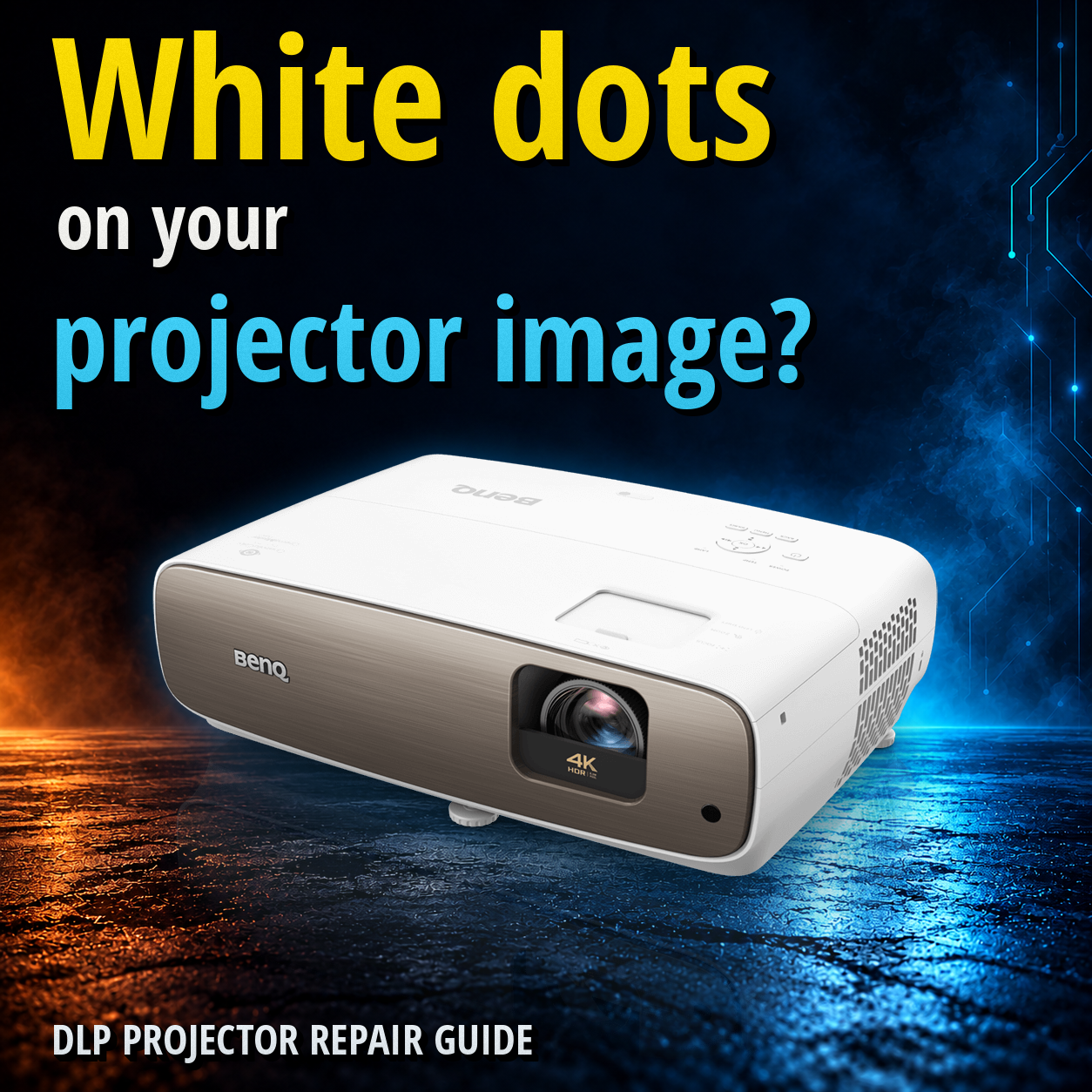
Projector repair · Before you buy parts or pay for shipping
The picture still works, but one bright dot keeps catching your eye. Maybe there are several now. Before you order a lamp, buy a chip or replace the projector, find out whether those dots stay in the same place when the picture changes.
That observation will not diagnose the projector. It does give you a much better starting point than “I think the DMD is bad.” This guide is for persistent, pixel-like dots on an otherwise visible DLP projector image, not every projector problem.
First, what do the marks actually look like?
A tiny point that stays in one place, a flickering speck that appears and disappears, and a soft shadow are useful descriptions of different symptoms. Calling all three “dead pixels” can send the repair conversation in the wrong direction.
Small, fixed points
Record whether the same points remain when you change what is playing.
Changing speckles
Note whether the behavior changes with the content, source or cable.
A soft patch or shadow
Describe its size and shape. Do not assume that it needs a new chip.
Use the closest description below. If yours falls into more than one row, mention both symptoms rather than trying to make them fit a single explanation.
The table scrolls sideways on smaller screens.
| What you see | Useful observation | Next step |
|---|---|---|
| Sharp white or black points | Do they stay in the same image positions across different content and normal projector menus? | Use the checks below. Persistent points warrant a model-specific assessment, which may include the DMD. |
| Speckles that change or disappear | Does another source, cable or piece of content change the behavior? | Report that change. It helps narrow the inquiry but does not prove which device or connection is responsible. |
| A soft blotch or shadow | Is it a broad area rather than individual, crisp points? | Document it as an optical/image issue. Dust in the light path and other optical faults can create shadows; a photo cannot separate them reliably. |
| The whole image goes soft | Does text lose focus, or does the projector repeatedly refocus? | For a portable model, see our guide to a blurry projector image. |
| The picture disappears or the unit shuts down | Record any warning message and what happens before it stops. | Use the guide for sound but no picture or shutting off or overheating. |
A few useful checks, with the case left closed
You are collecting observations, not trying to force the fault to reveal itself. Keep the projector in its normal, stable position. There is no need to remove a ceiling-mounted unit just to make an initial inquiry.
- Make sure the mark is in the projected image. When the projector is off, look at the screen or wall under room lighting. A visible surface mark is worth mentioning. Do not scrub a projection screen as an experiment; follow its own care instructions if cleaning is needed.
- Change what is playing. Try different ordinary content through the controls you normally use. Watch whether the points stay put while the scene changes. Keep the projector position and image-size settings unchanged so your comparison is easier to describe.
- Look at the projector's own menu. Open a normal on-screen menu if the projector is operating safely. Note whether the same points are visible. A bright menu or one that covers only part of the image may make a dot hard to see, so “I could not tell” is a useful answer.
- Compare a suitable source or cable, if one is already available. Follow your model's normal connection instructions. Change one thing at a time and write down what changed. You do not need to buy a collection of adapters or cables before asking for help.
- If appropriate, try one normal restart. Follow the exact model's shutdown, cooling and restart instructions. Do not force a reset, interrupt its cooling sequence or repeatedly switch the power on and off. If the points remain, record that and stop troubleshooting.
What does the menu check actually tell you?
If the same marks remain on the projector's own graphics as well as external content, that is useful evidence that the issue is not limited to one video or player. It still does not tell you whether the DMD, its electronics or another part of the projector needs work.
If the marks disappear with a different source or cable, report exactly which change helped. An input-specific problem is still possible; “the second source looked clean” is more accurate than “the projector is definitely fine.”
Resist the cleaning and parts-buying experiments
Dust can cause image problems, but that does not make internal cleaning a safe first step. Do not spray through the vents, put tools into the projector, open the optical assembly or touch internal surfaces. Use only the external care steps specifically allowed in your model's manual.
Also hold off on buying a lamp or DMD chip just to see what happens. A parts purchase can leave you with the original problem and a part you cannot use or return.
Why the DMD comes up, and what still needs checking
DMD means digital micromirror device. It is a chip covered with microscopic mirrors that tilt to help form the image in a DLP system. It works with control electronics, a light source and optics.
Persistent bright or dark pixel-like spots are a recognized reason to investigate the DMD. That is different from being able to confirm “you need a new DMD” from a dot count or a phone photo. Other faults can affect the displayed image, and a soft shadow may call for a different optical assessment.
A useful diagnosis needs to answer a practical question: what work will address this projector's fault, and what evidence supports that repair?
- Identify the exact unit. The full model, regional version and any relevant revision matter. A similar model name or matching resolution is not enough to choose an internal part.
- Confirm the fault before specifying parts. Ask what was found and whether other image, cooling or power problems also need attention.
- Check that the proposed work is available. The correct part, its condition, compatibility and the ability to service that unit all need confirmation.
- Agree on the result being checked. Ask how the image will be assessed after repair and whether any remaining defects or limitations will be documented.
“Laser” or “LED” on the box does not by itself tell you whether this guide applies. Those terms describe the light source; check the model's specifications for the imaging technology. This guide is about DLP projectors, not LCD projectors or rear-projection televisions.
Who confirms the repair and price?
If a suitable repair provider accepts the case, that provider assesses the projector and confirms the proposed repair and price. Ask them to explain any assessment or return-shipping terms before sending it.
An online DMD price is only a part price. It does not establish that the part is needed, that it matches your projector or what the complete installed repair would involve.
Would you actually be better off keeping this projector?
Compare the complete repair quote with a replacement you would genuinely be happy using. The original purchase price is useful background, but it is not a reason to spend more on an older projector than makes sense today.
Repair is worth considering when
- The projector met your needs before the dots appeared.
- The diagnosed work addresses the complaint without leaving other costly faults unresolved.
- The correct repair is available and the full quote compares well with a suitable replacement.
- The expected wait, shipping risk and repair coverage are acceptable to you.
Replacement may be the better choice when
- Parts or exact-model service cannot be confirmed.
- The projector also has power, color, focus or other problems that make the total hard to justify.
- A suitable working replacement offers better value after all charges are included.
- You were already planning to change the setup, or cannot tolerate an uncertain repair timeline.
Compare the setup, not just the projector price
A cheaper replacement may need a different mounting position, throw distance, mount or cabling to work in your room. Check those details before treating it as a direct swap. On the other hand, do not assume your existing setup makes repair worthwhile at any price.
If you are comparing with a used projector, consider its condition, operating history, return terms and any warranty. A low asking price for an untested unit is not the same as a dependable replacement.
Check possible warranty coverage before authorizing paid work. If a manufacturer, retailer or existing plan may cover the issue, find out what that route requires first. Tell us about it in your request. You do not need to choose a paid repair simply because you have asked for advice.
There is no useful one-size-fits-all percentage cutoff. The decision is whether the proposed repair, with its remaining uncertainties, is a better fit for your budget and room than the alternatives.
Send the symptoms first, not the projector
Start with the Mad Labs repair request form. You do not need to identify the failed component or remove the projector from its mount to ask whether a repair option is worth exploring.
Include what you can safely provide
- Brand and exact model. A label photo helps if it is easily accessible. Do not climb or move a heavy unit just to get one; use your receipt or manual if available.
- One photo of the whole projected image and one closer view. Photograph the screen, not the lens. Tell us if the camera makes the dots look different from what you see.
- What stays the same and what changes. Mention your normal menu, another source or cable only if you checked them safely. “Not tested” is fine.
- When you noticed it. Say whether there was one point or many, whether the number appears to be changing, and whether anything happened just beforehand.
- Other faults and repair history. Include warning lights, shutdowns, color or focus problems, past work and any parts already replaced. If operating or lamp hours are normally visible in the user menu, include them without resetting anything.
- Your practical limits. Your ZIP code, a spending limit, when you need it working, possible warranty coverage and whether you still have the original packaging.
Photos help us review the request and check whether a suitable repair option is available. They cannot confirm the internal diagnosis, reserve a part or guarantee that the job will be accepted.
Shipping comes after the route is confirmed
Before buying postage, confirm acceptance of the exact model and symptom, the assessment terms, the delivery address and the receiving service's packing requirements. Do not send it to an address found in an old post or assume a previous repair's instructions still apply.
Ask about protecting the lens, securing the projector in its packaging and which accessories, if any, are needed. Do not remove a lens, lamp or other component just to ship it. If proposed packing instructions call for removal you are unsure about, ask for a safer handling option. An original box is useful only if the packaging is complete, sound and accepted for the shipment.
Keep condition and packing photos. Confirm the packed size, weight, both freight legs and any transit-coverage terms before deciding the total is worthwhile. If the projector is heavy, awkward to remove or difficult to pack safely, a local or manufacturer service route may make more sense.
Before you say yes to the repair
A clear estimate should make the proposed work understandable without requiring you to learn projector repair. You should be able to answer these questions:
- What fault was confirmed, and what is being done about it? Ask what will be replaced or serviced and whether any known problems will remain.
- What is the authorized total? Make sure extra work or a different part requires your approval rather than appearing on the final bill.
- How will the result be checked? Ask how the original dot complaint and other reported symptoms will be assessed after the work.
- Who handles the repair and any problem afterward? Know the service contact, warranty terms, return arrangements and realistic timing before agreeing.
- What happens if the plan falls through? Parts can prove unsuitable or unavailable, or inspection can reveal more work. Know your decline and return options in advance.
Keep the estimate and final repair record. A useful record describes the work performed, not just “projector fixed.” It will help if you need support later or decide to sell the unit.
A few common questions
Does one white dot mean the projector is about to fail?
The dot count alone cannot tell you how the fault will develop. Record what you see and when you first noticed it. Do not rely on a promise that it will stay at one dot, or an assumption that the whole projector is about to stop working.
Will a new lamp fix the dots?
Do not buy a lamp as a diagnostic experiment for persistent points. First establish what is causing the image defect. If there is also a lamp warning or a brightness problem, mention it separately so it can be assessed rather than folded into the same guess.
Could it just be dust?
Dust in the light path can produce blurry marks or shadows. That does not establish the cause of a sharp white point, and it does not make internal cleaning a sensible DIY test. Follow only the care instructions intended for the owner of your exact model.
Should I buy a DMD chip before requesting repair?
No need to buy one first. Ask about diagnosis, the correct part and sourcing requirements. A listing with a familiar model name does not establish compatibility with every revision, and you should not assume a service will install or warranty a customer-supplied part.
Can a firmware update or reset fix persistent white dots?
Do not treat a generic update or factory reset as a white-dot repair. Follow a manufacturer instruction only when it applies to your exact model and symptom. Record any previous updates or resets in the request; there is no need to repeat them just to complete this guide.
This guide helps you document a DLP image problem and compare the next steps. It does not replace the safety, care or warranty instructions for your particular projector and screen.

%20(7).png)