Sometimes it’s simple. Sometimes it’s not.
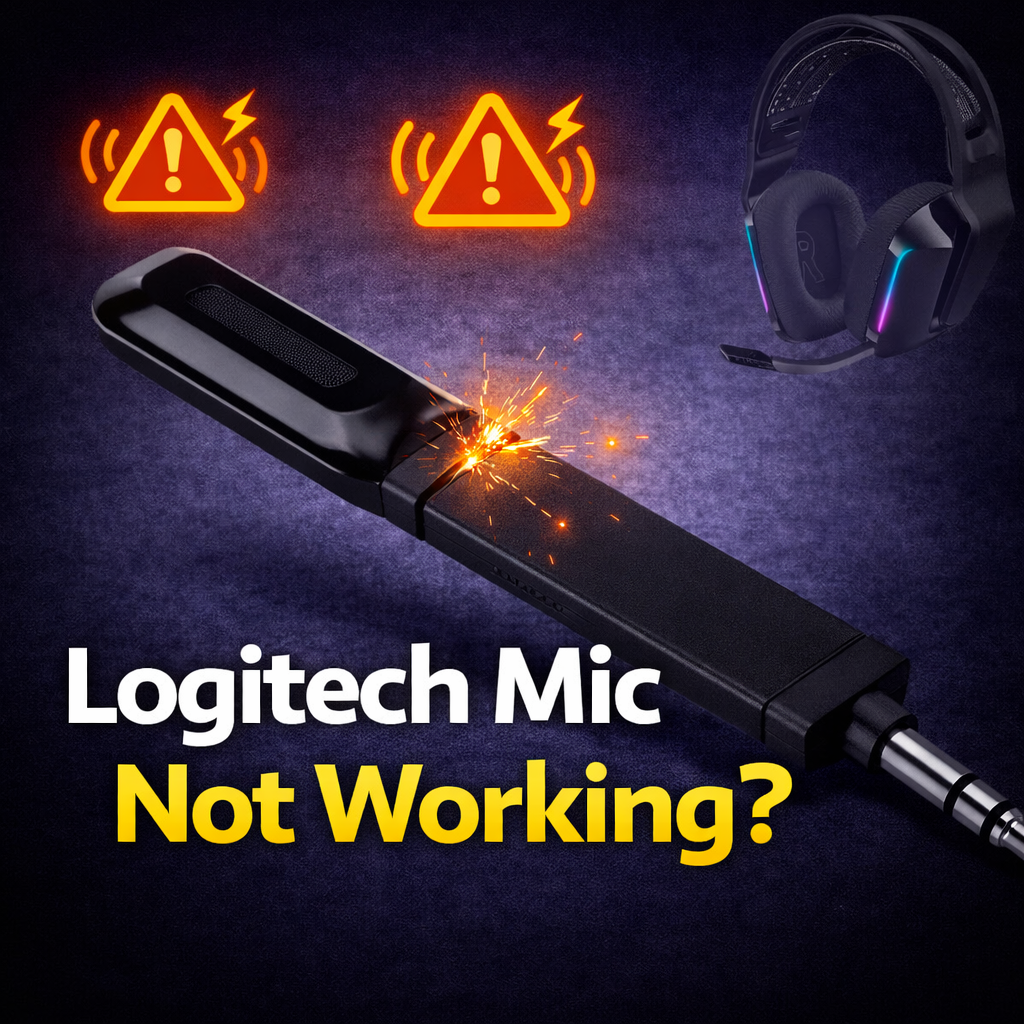
A Logitech headset mic problem can come from:
And the frustrating part is this: a lot of Logitech mic problems look the same at first. Logitech’s own support pages for H-series, Zone, and Zone Vibe headsets all start with the same basics: confirm the boom position, make sure the headset is selected as the input device, check mic levels, test on another system, and inspect the physical hardware. (Logitech Hub)
This guide works best for common Logitech headset families like:
That mix makes sense because Logitech’s support content covers H-series and Zone troubleshooting directly, while Logitech G’s Pro X line uses removable or software-enhanced mic features through G HUB and Blue VO!CE. (Logitech)
If your Logitech headset mic is not working, the most likely causes are:
If the problem changes when you move the boom, bend the cable, or reposition the headset, think hardware first. If it fails the same way across apps until you change settings, think setup or software first. That lines up with Logitech’s own support flow and with the movement-based diagnosis pattern on your own headset post. (Mad Labs Repair)
This is the easiest miss.
Some Logitech headsets mute the mic based on boom position. Logitech’s Zone Vibe Wireless support page says the headset mic is automatically muted when the boom is in the upright position, and Logitech support for USB/business headsets also tells users to move the boom closer to the mouth and test mic position first. (Logitech Hub)
So before anything else:
Nobody hears you at all.
That can point to:
That usually points toward:
That exact pattern is already something your site covers well. (Mad Labs Repair)
That often points to:
Logitech’s Zone Wireless 2 support specifically tells users to move the mic closer, check for blocked mic holes, and confirm the device is selected as the input with mic level set correctly. (Logitech Hub)
That usually points more toward:
Logitech’s H-series support says to try a different USB port, avoid hubs when possible, and test on another computer to separate connection problems from hardware failure. (Logitech Hub)
Logitech support repeatedly tells users to check that the headset is selected as the default recording/input device in Windows, macOS, and the call app itself. (Logitech Hub)
On supported Logitech help pages, Logitech tells users to verify the mic level is set correctly, including setting it to maximum in some cases. (Logitech Hub)
For USB models, Logitech says to try another USB port and avoid hubs or extenders that may not provide proper power or connection quality. (Logitech Hub)
If it fails the same way everywhere, that makes a real hardware fault much more likely. Logitech’s H-series support says to test on another computer for exactly that reason. (Logitech Hub)
Logitech’s H-series mic troubleshooting specifically tells users to verify the physical health of the device, including faulty or damaged cable issues. (Logitech Hub)
This is the biggest false alarm category.
A lot of “dead mic” cases are really:
That is why Logitech support starts there first across multiple headset families. (Logitech Hub)
This is especially common on wired office headsets.
If the headset is USB-based and the mic is flaky, silent, or drops out randomly, the issue may be:
Logitech’s H-series and H390 guidance both tell users to try different USB ports, connect directly to the computer, and avoid hubs during troubleshooting. (Logitech Hub)
This is one of the most repair-relevant categories.
If the mic:
…that strongly points to a physical mic-path failure.
That pattern fits your own successful “mic only works in one position” post almost perfectly. (Mad Labs Repair)
On some Zone models, Logitech explicitly notes that microphone holes can be physically blocked and that boom position matters for voice capture. (Logitech Hub)
This is a simpler problem, but it can mimic a “bad mic” if:
On wireless Logitech headsets, a weak or unstable power state can create weird mic symptoms too:
That is more likely on Zone-type wireless models than simple wired H-series headsets. Logitech’s Zone support ecosystem includes reset and recognition troubleshooting because these products are more complex than basic plug-and-play headsets. (Logitech Hub)
For Logitech G models like the Pro X family, mic behavior can also be affected by G HUB and Blue VO!CE features. Logitech G’s own product pages say advanced mic features for Pro X rely on G HUB. (Logitech)
That does not mean every Pro X mic issue is software.
It just means gaming headsets add another layer to check before assuming the mic hardware is dead.
Usually yes if:
Usually less worth it if:
If your Logitech headset mic is not working:
If movement changes the symptom, that is usually your clue that the problem is physical, not just a setting.
When a Logitech headset comes in with a mic problem, the real question is not just:
“Does the mic work?”
The real questions are:
That is the difference between:
If your Logitech headset mic is not working, the most likely causes are:
If the mic changes when you move the boom or cable, think hardware first.
If it fails the same way until you change settings, think setup first.
If it’s a wireless or gaming model, also check the software/control layer before assuming the mic itself is gone. (Logitech Hub)
If your Logitech headset mic isn’t working, don’t guess.
Send Mad Labs Repair your exact model, whether it’s wired or wireless, and what the mic is doing — dead, faint, cutting in and out, or only working in one position. We’ll help you figure out whether it looks like a setup problem, a damaged mic path, or a repairable hardware issue.
%20(7).png)
Fix what’s worth keeping.
Copyright © 2025 Mad Labs Repair. All Rights Reserved